Invite your team to the dashboard
Give each person on your team their own sign-in instead of sharing yours. They see calls, bookings and customers; billing and who's on the account stay with you.
Before you start
- You're the account owner. Members can see the Team tab but can't invite anyone.
- The email address each person will sign in with.
What members can and can't do
| Members can | Only the owner can |
|---|---|
| See calls, recordings, bookings and customers | See and change Billing |
| Change the agents' settings and integrations | Invite and remove people |
| Download reports | Add or remove agents |
| Change the logo, and require two-step verification for everyone |
An account can have up to 20 people.
Four steps
Open the Team tab
In the sidebar, under Account, click Settings, then the Team tab.
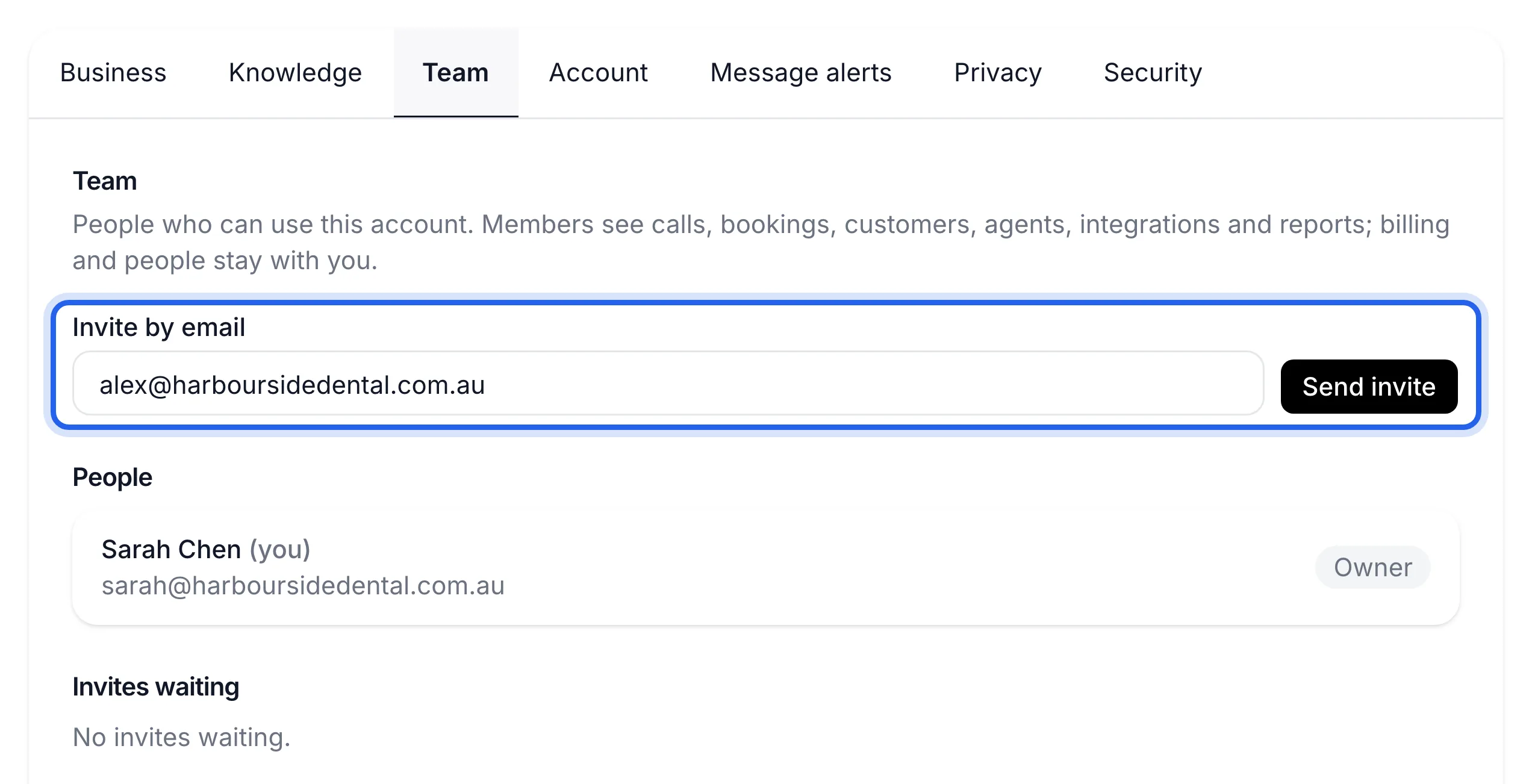
Send the invite
Type their email into Invite by email and click Send invite. They get an email with a link to join. The invite shows under Invites waiting with the date it expires. Invites last 7 days.
Send the link yourself if the email doesn't arrive
Under Invites waiting, click Copy link and send it to them by text or chat. The link only works for the address you invited, and any earlier link for that invite stops working. Resend sends the email again; wait a minute between sends.
They accept the invite
When they open the link, they see "Join {your business} on Lightspire":
- New to Lightspire: they click Create your account and sign up with that same email, using a password, Google or Microsoft. We email them one link to confirm the address, then they're in.
- Already have a Lightspire sign-in with that email: they click Sign in to accept.
Their name shows under People with the role Member, and the invite is gone from Invites waiting.
Remove someone
On the Team tab, click Remove next to their name and confirm. They lose access straight away; their sign-in still works, but they can't see your calls, bookings or reports. You can invite them again later. To cancel an invite that hasn't been accepted, click Revoke.
A member who wants to leave can do it themselves: Settings, Team, Leave account.
If something's not right
The invite email didn't arrive
Ask them to check spam, then use Copy link and send it yourself. If Resend says the invite has been sent enough times, click Revoke and invite them again.
"This invite link doesn't work" or "This invite has expired"
The link was cut short, replaced by a newer one, or is more than 7 days old. Send a fresh one with Copy link, or revoke and invite again.
"You're signed in as … This invite is for …"
They're signed in with a different email. They sign out, then open the link again and sign in with the invited address.
"This email already has its own Lightspire account"
That email already runs its own Lightspire business, so it can't join yours. Invite a different address, or email support@lightspire.ai to move it.