Update your business details
Your agent uses your business details when it talks to callers, and your booking emails go to the address you set here. Keep them up to date in a minute.
Before you start
- You're signed in. Anyone on the account can change the business details; only the owner can change the logo.
- Opening hours, booking rules, transfers and notifications aren't here: they belong to each agent, on the Agent page. See Set your services and opening hours.
Four steps
Open the Business tab
In the sidebar, under Account, click Settings. The Business tab opens first.
Change your details
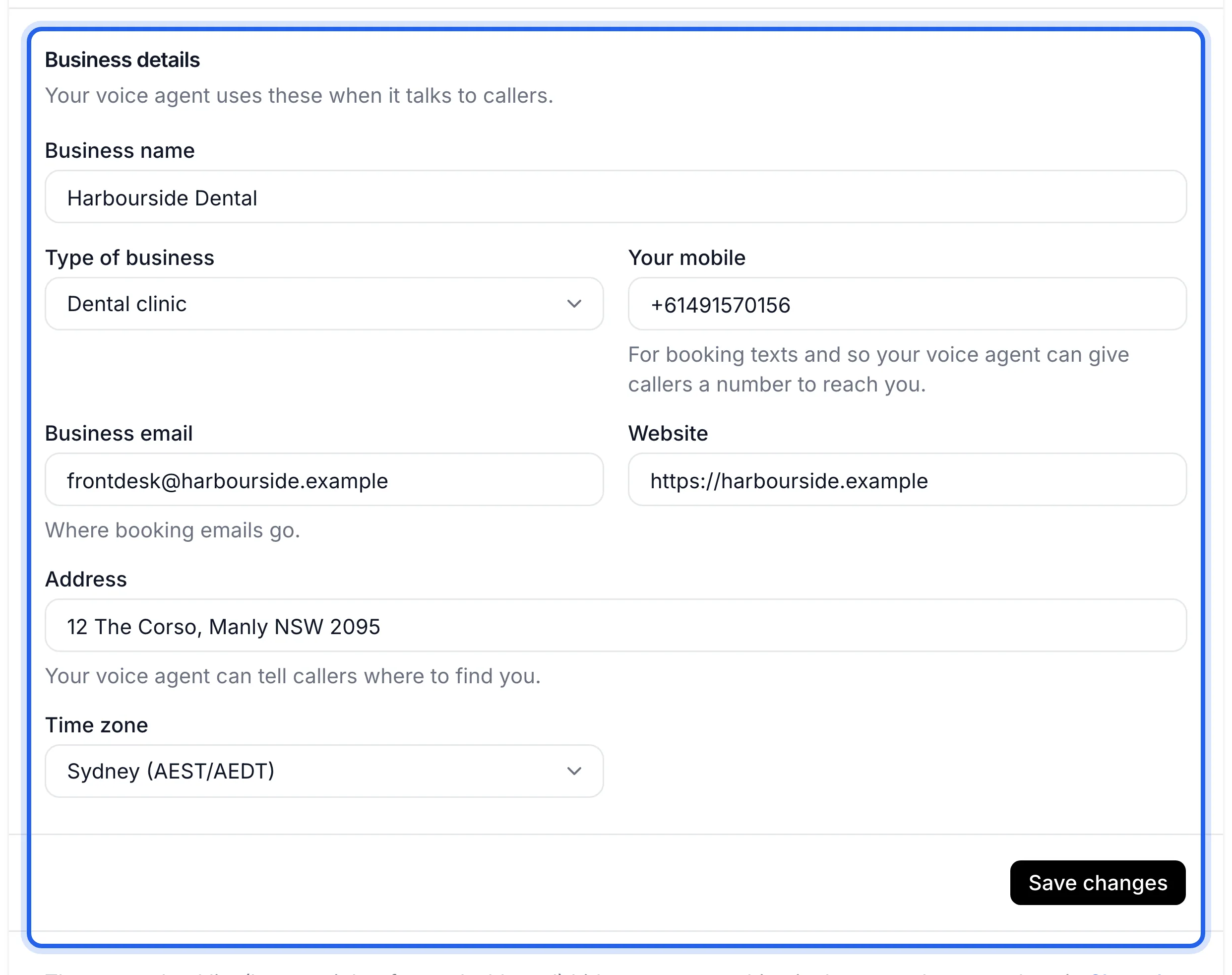
Under Business details, edit what you need:
Field What it's for Business name How your agent introduces your business Type of business Your industry Your mobile For booking texts, and so your agent can give callers a number to reach you Business email Where booking emails go Website Your website address, starting with https:// Address So your agent can tell callers where to find you Time zone The time zone for bookings, calls and reports Click Save changes. You'll see "Business details saved".
Each agent can also have its own business name and address, for another location or a client. Choose the agent at the top of the sidebar, open Agent, and use Label and address.
Add your logo
Owners can add a small logo that shows in the menu for everyone on the account. Under Logo, click Upload logo and pick a PNG, JPEG or WebP image. It's cropped to a square and shrunk to 128 by 128 pixels. Use Replace logo to change it later.
Change how you sign in
Open the Account tab. It shows the email you're signed in with.
- Set a password: if you signed up with Google or Microsoft, add a password so you can also sign in with your email.
- Change password: type a new one under New password and click Save password.
- Sign out: signs you out of this browser.
The new details show on the Business tab after a refresh, and your next test call uses the updated name. Try it: Make a test call.
If something's not right
My agent still says the old name
Check the agent's own Business name (optional) on the Agent page, under Label and address. When it's filled in, it's used instead of the name in Settings. Leave it empty to use your account's name.
Booking emails go to the wrong address
Check Business email on the Business tab, then check the agent's Your alerts tab under Notifications on the Agent page. See Choose who gets booking emails.
Times in my calls and reports are off by an hour or more
Your Time zone is set to another state. Pick the right one and click Save changes.
I can't change the logo
Only the account owner can. Members see "Only the account owner can change it."