Turn on two-step verification
With two-step verification on, signing in with your email and password also needs a 6-digit code from an app on your phone. Someone who learns your password still can't get in.
Before you start
- You sign in with an email and password. Sign-ins with Google or Microsoft aren't affected: they check those themselves. If you only use Google or Microsoft, you can add a password under Settings, Account tab, Set a password.
- An authenticator app on your phone, such as Google Authenticator, Microsoft Authenticator or 1Password.
Five steps
Open the Security tab
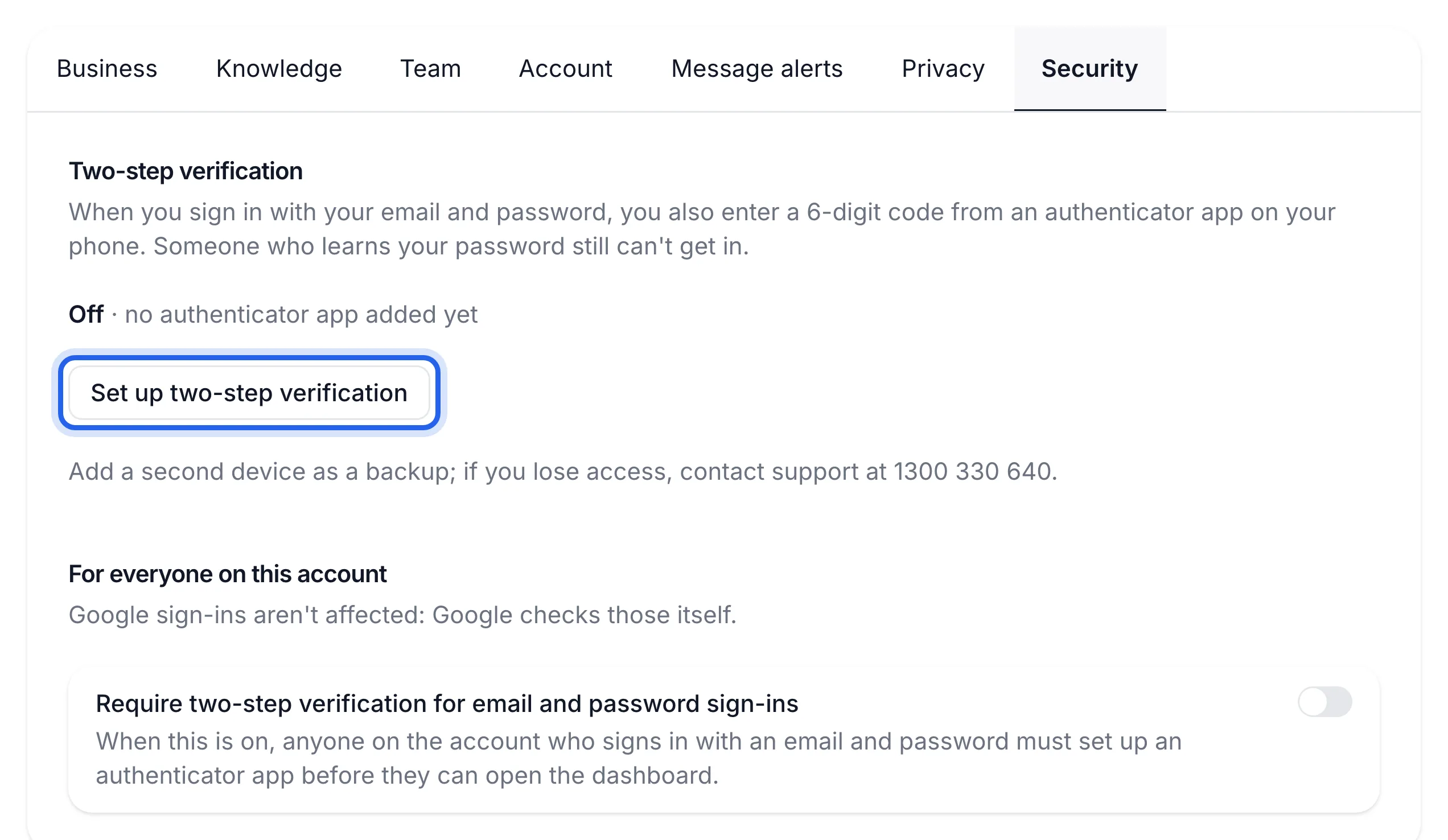
In the sidebar, under Account, click Settings, then the Security tab. Under Two-step verification it says Off until you've added a device.
Name your device
Click Set up two-step verification. Under Name this device, type a name you'll recognise, such as "Phone", then click Continue.
Scan the QR code
Open your authenticator app, add a new account, and scan the QR code on screen. If you can't scan it, click Copy key and type the setup key into the app instead. The app adds an entry called Lightspire.
Enter the code and turn it on
Type the 6-digit code the app shows into the box, then click Verify and turn on.
Add a backup device
Click Add a backup device and repeat the steps on a second phone or tablet. If you lose one, you can still sign in with the other.
The Security tab says On with your device listed. Next time you sign in with your email and password, you'll see "Enter the 6-digit code" after your password.
Require it for your whole team
If you're the owner, turn on Require two-step verification for email and password sign-ins under For everyone on this account. Anyone on the account who signs in with an email and password must then set up an authenticator app before they can open the dashboard. Members can see this switch but can't change it.
Turn it off
On the Security tab, click Remove next to the device and confirm. If it was your only device, signing in needs just your password again, unless the owner requires two-step verification, in which case you're asked to set up another device straight away.
If something's not right
The code is rejected
Codes change every 30 seconds. Type the newest one. If they're always wrong, check the time on your phone is set automatically; a clock that's even a minute out gives wrong codes.
I lost my phone
Use your backup device to sign in, remove the lost one on the Security tab, and add your new phone. With no backup device, call 1300 330 640 or email support@lightspire.ai from your account's email address.
I wasn't asked for a code
You probably signed in with Google or Microsoft, which don't use Lightspire's two-step code.