Add a booking yourself
Put walk-ins and bookings you take yourself into Lightspire, so your agent never offers that time to a caller. You can block out lunch or a day off the same way.
Watch it done

Read the transcript
0:00 Add a booking yourself
0:03 Took a booking yourself, or someone walked in? Add it to Lightspire so your receptionist never offers that time.
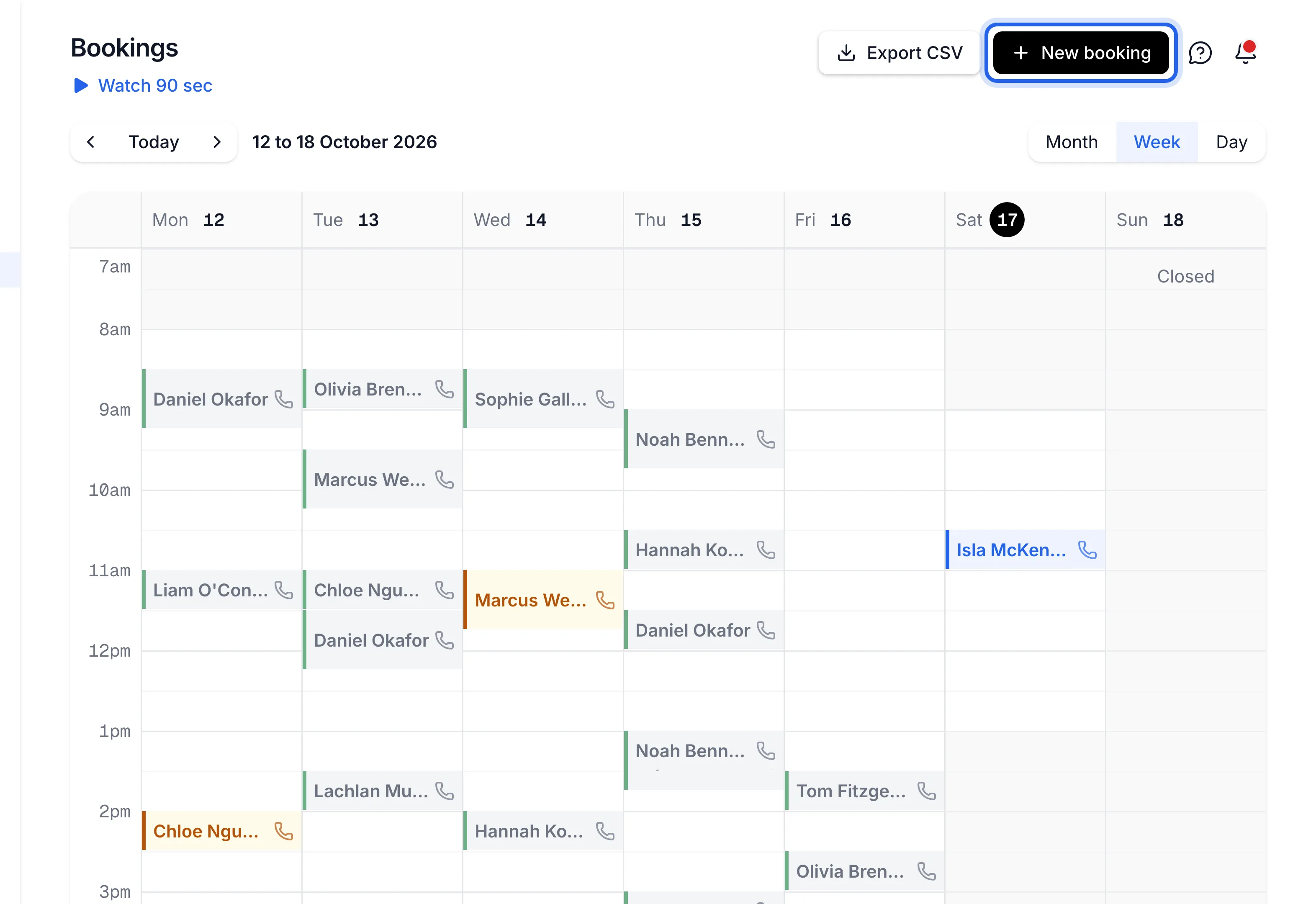
0:10 Open Bookings. Phone bookings show a small phone icon.
0:14 Click New booking. Or double-click a time on the calendar.
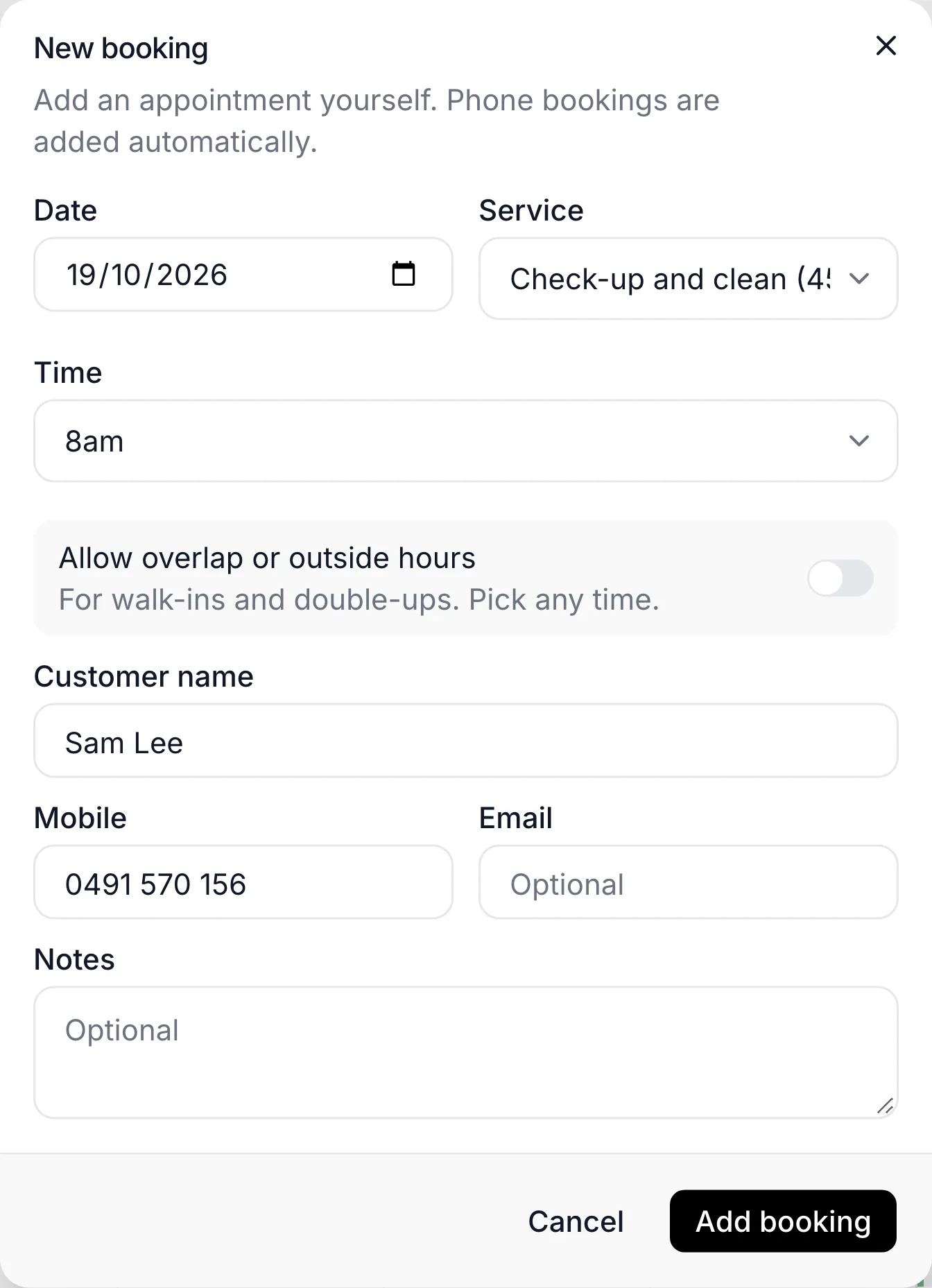
0:18 Pick the date and the service. The time list only shows free times, inside your hours. For a walk-in or a double-up, turn on Allow overlap.
0:27 Type the customer's name. Add their mobile, and they're added to your Customers list too.
0:33 Click Add booking. It's on the calendar, and in any calendar you've connected.
0:38 To keep time free, drag across it and choose Block this time. Add a label like Lunch. Callers are never offered blocked times.
0:47 Next, see how to change or cancel a booking.
Before you start
- Your services are set up on the Agent page, Services tab, so you can pick one.
- More than one agent? Pick the agent at the top of the sidebar first. The booking goes on its calendar.
Six steps
Open Bookings
Click Bookings in the sidebar. Choose Month, Week or Day, and use the arrows or Today to find the day. Bookings your agent took over the phone show a small phone icon.
Click New booking
Click New booking at the top right. Or, in Week or Day view, double-click the time you want.
Pick the date, service and time
Choose the Date and the Service. Time lists only free times inside your opening hours, so you can't double-book by mistake.
For a walk-in or a double-up, turn on Allow overlap or outside hours and type any time.
Fill in the customer's details
Type the Customer name (required). Add their Mobile and they're added to your Customers list too. Email and Notes are optional.
Add the booking
Click Add booking. You'll see Booking added, and it's on the calendar. It's also added to any calendar you've connected on Integrations.
Adding a booking yourself doesn't text or email the customer. Let them know the time yourself.
Block out time you're not available (optional)
In Week or Day view, drag across the times, then choose Block this time. Add a Label such as Lunch, or switch on All day, and click Block time. Callers are never offered blocked times.
The booking is on the Bookings calendar, and when you click it, it says Added by you.
Undo
Click the booking, then Cancel booking and Yes, cancel. To free blocked time, click the block and choose Remove block. See Change or cancel a booking.
If something's not right
It says "No free times that day"
The day is closed, blocked or fully booked. Pick another day, or turn on Allow overlap or outside hours to add it anyway.
The time I double-clicked changed
That time wasn't free, so the next free time was picked. The box tells you, for example "10:00 isn't free, so the next free time is picked." Turn on Allow overlap or outside hours to keep your time.
It says "Nothing was booked: Google Calendar can't be reached"
A connected calendar didn't answer, so nothing was saved anywhere. Check it on Integrations, reconnect if it asks, then try again. See My calendar isn't syncing.