Set your booking rules
Decide which times your agent offers callers: how long appointments are, how soon and how far ahead people can book, and whether it takes bookings at all.
Watch it done
Read the transcript
0:00 Set your booking rules
0:03 Booking rules decide which times your receptionist offers callers.
0:07 Open the Agent page and choose the Booking rules tab.
0:11 Take bookings is on, so your receptionist checks free times and books callers in. Turn it off, and callers who ask are offered a message instead.
0:19 Default booking length is used when a service has no length of its own. It's also the gap between the times offered.
0:26 Minimum notice is the soonest someone can book from now. How far ahead is the furthest date they can choose.
0:33 Leave One booking at a time on if you see one customer at a time. Turn it off if several staff take bookings at once.
0:40 Click Save changes. The next call uses the new rules.
0:44 Next, add a booking yourself, for walk-ins and calls you take.
Before you start
- Your opening hours are right on the Agent page, Opening hours tab. Times outside them are never offered.
- Your services have their lengths on the Services tab. See Set your services and opening hours.
- More than one agent? Pick the agent at the top of the sidebar first. Each agent has its own rules.
Six steps
Open Booking rules
Click Agent in the sidebar, then the Booking rules tab.
Check Book appointments is on
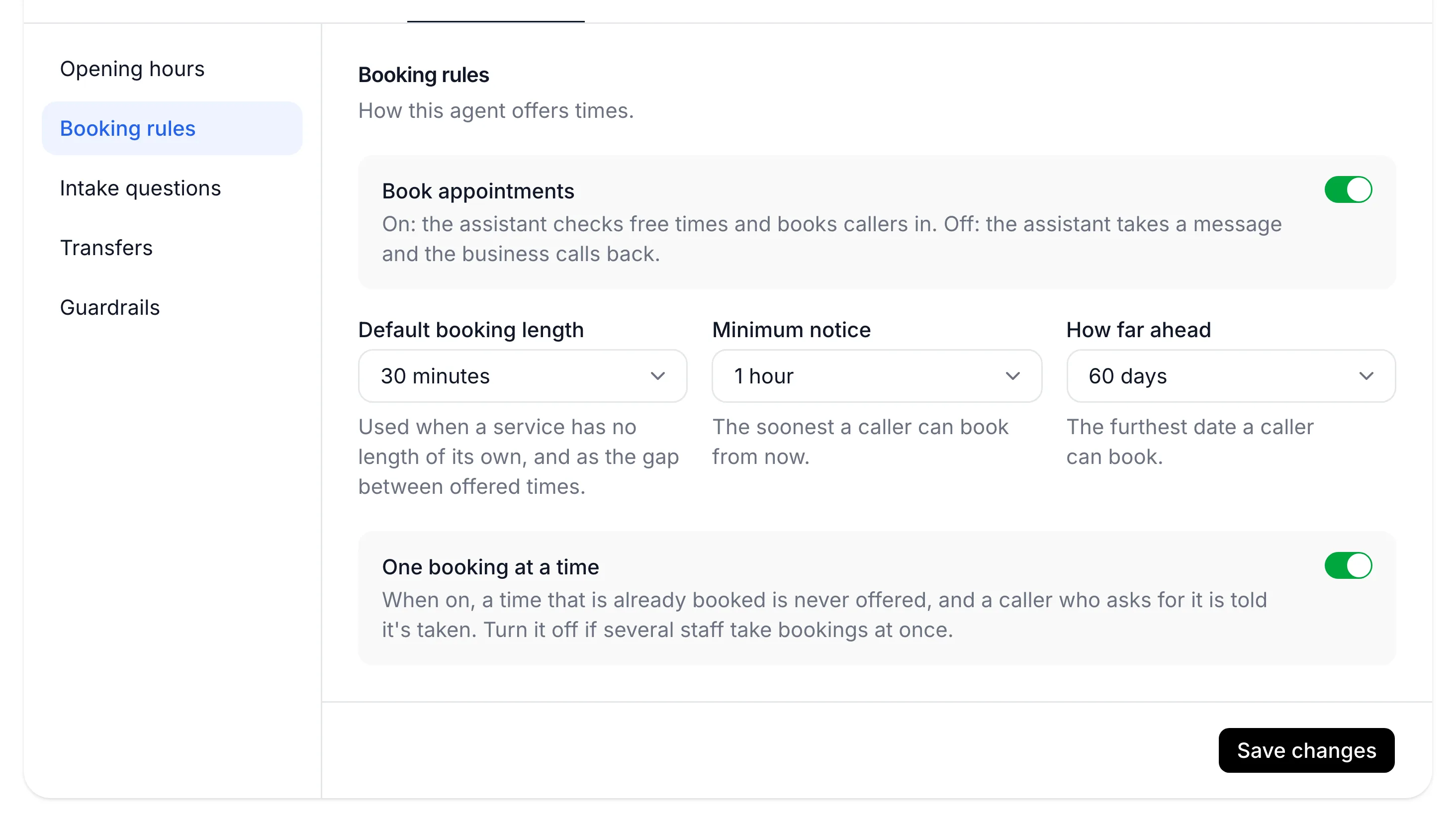
With Book appointments on, your agent checks free times and books callers in. Turn it off and the assistant takes a message and you call back: it doesn't book, change or cancel appointments, and callers who ask can also be offered a transfer or your website. The other fields grey out while it's off.
Setup asks the same question: "Should the assistant book appointments, or take messages only?" Choose Take messages only there and it starts with bookings off.
Choose the default booking length
Default booking length is used when a service has no length of its own. It's also the gap between the times offered, so 30 minutes offers 9:00, 9:30, 10:00 and so on.
Set minimum notice and how far ahead
Field What it means Choices Minimum notice The soonest a caller can book from now No notice needed, 30 minutes, 1 hour, 2 hours, 1 day How far ahead The furthest date a caller can book 14, 30, 60 or 90 days A new account starts at 1 hour's notice and 60 days ahead, with 30-minute bookings.
Choose one booking at a time
Leave One booking at a time on if you see one customer at a time: a booked time is never offered, and a caller who asks for it is told it's taken. Turn it off if several staff take bookings at once.
Save your changes
Click Save changes. You'll see Booking rules saved, and your agent uses the new rules from the next call.
You see Booking rules saved, and a test call only offers times that fit your hours, your notice and how far ahead you allow.
Turn it off
Don't want calendar bookings at all? To take messages only but keep answering calls, switch off Book appointments and click Save changes. You don't need to connect a calendar.
- Bookings leaves the sidebar while that agent takes messages only, and the setup checklist skips the services step.
- Bookings already made stay as they are. The Bookings page (open it from Upcoming bookings on the Dashboard) shows a note with a Turn bookings on link, and you can still add bookings yourself.
If something's not right
Callers are offered times when I'm closed
Check the Opening hours tab for that agent, and your time zone in Settings, on the Business tab.
No times are offered at all
Your notice may be too long or the days too few, or every time is already booked. If a connected calendar has a problem, your agent takes messages instead of booking: check Integrations.
Two customers were booked at the same time
One booking at a time is off. Turn it on and save.
I can't change the fields
Book appointments is off, so the rest is greyed out. Turn it on first.
Bookings is missing from the sidebar
The agent shown in the sidebar takes messages only. Turn Book appointments on here to bring it back.