Connect Google Calendar
Connect your Google Calendar and your agent only offers callers times you're free, then adds each booking to your calendar.
Watch it done
Read the transcript
0:00 Connect Google Calendar
0:03 Connect Google Calendar and your receptionist only offers times you're free, then adds every booking to it.
0:09 Open Integrations. You'll see Google Calendar, Outlook and Calendly. Each agent has its own calendars, so pick the agent in the sidebar first.
0:18 Click Connect next to Google Calendar.
0:21 Choose the Google account with your appointments, and allow everything Lightspire asks for. It needs to see when you're busy, and to add and remove its own bookings.
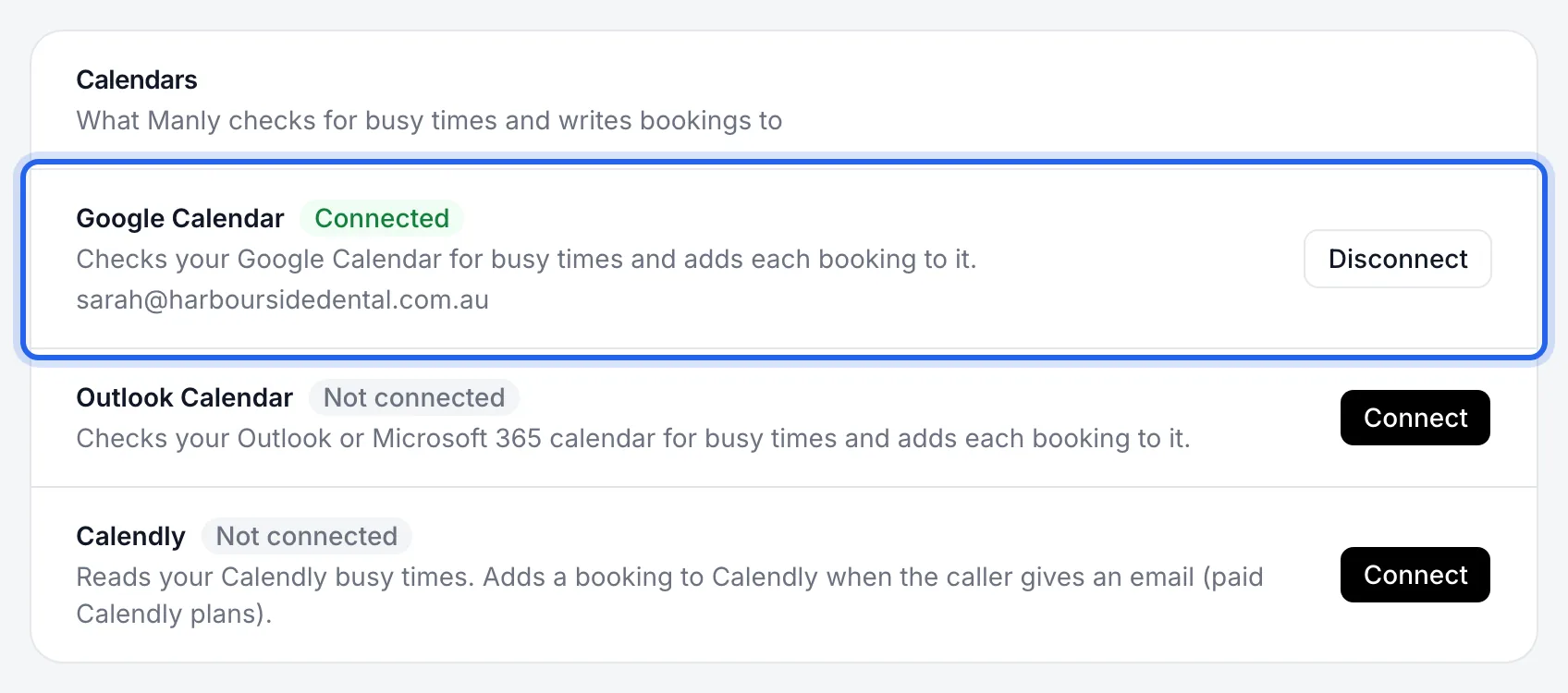
0:30 You're back on Integrations. Google Calendar says Connected, with your Google email underneath.
0:36 Before offering a time, your receptionist checks every connected calendar and your opening hours. A booking goes into all of them together, or none, so you never get half a booking.
0:46 Each phone booking appears in Google Calendar with the service and the customer's name.
0:51 Next, make a test call and book a time to see it land.
Before you start
- You can sign in to the Google account whose calendar holds your appointments.
- More than one agent? Pick the agent at the top of the sidebar first. Each agent has its own calendars.
- Your opening hours are set on the Agent page, Opening hours tab. Times outside them are never offered.
Five steps
Open Integrations
Click Integrations in the sidebar. Under Calendars, Google Calendar shows Not connected.
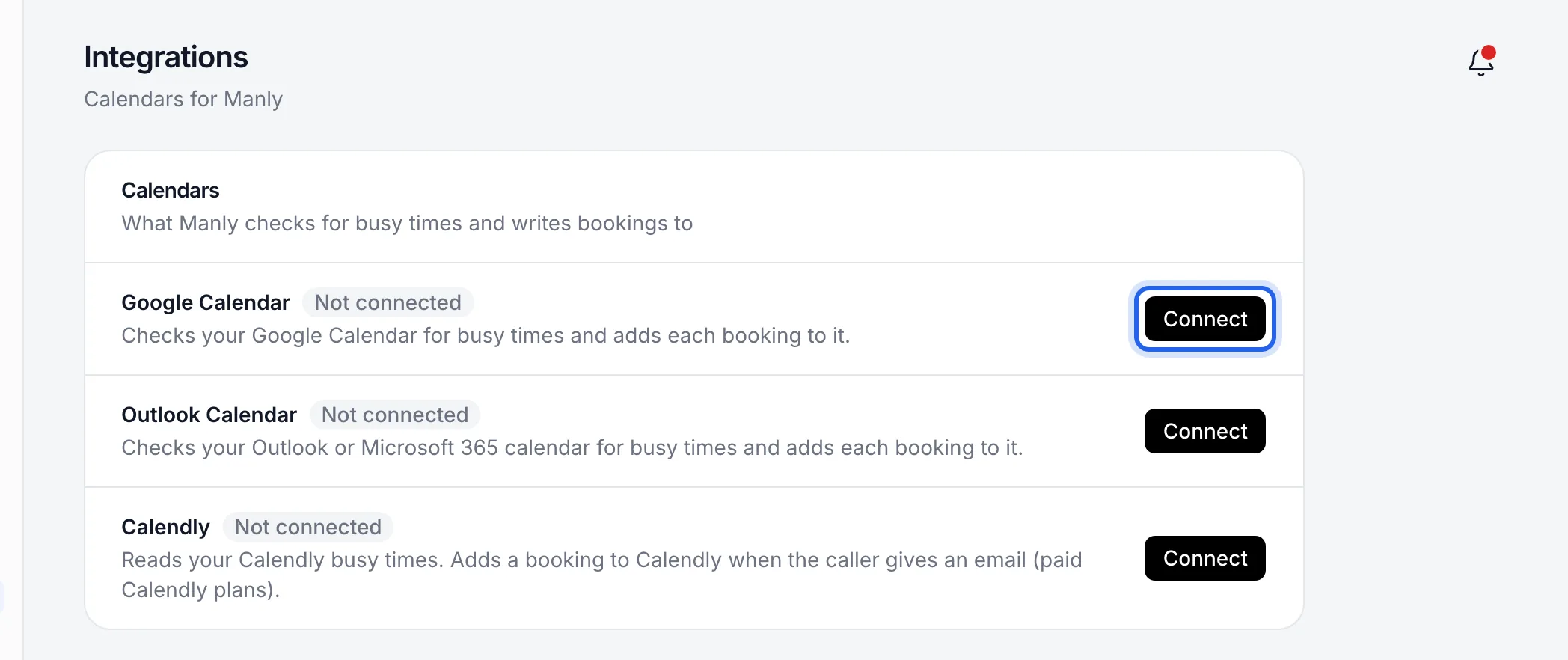
Click Connect next to Google Calendar
Google's sign-in page opens.
Sign in and allow access
Choose the Google account with your appointments. Allow everything Lightspire asks for: it needs to see when you're busy, and to add and remove the bookings it makes.
Untick a permission and you'll come back to "The calendar didn't give Lightspire the access it needs." Connect again and allow everything.
Check it says Connected
You're back on Integrations with a green message, for example "Google Calendar is connected to Mia." The row shows Connected and your Google email. After the first booking it also shows when it was last used.
Book a test appointment
Ring your Lightspire number and book a time. The booking appears in Google Calendar, named with the service and the customer, for example "Check-up and clean: Sam Lee".
What happens Where Busy times in your main Google calendar Never offered to callers A booking your agent takes, or one you add on Bookings Added to Google Calendar A booking you cancel on Bookings Removed from Google Calendar An event you add straight into Google Calendar Blocks that time, but doesn't show on Bookings An event you delete in Google Calendar The booking stays on Bookings; cancel it there too
Integrations shows Google Calendar Connected with your Google email, and your test booking appears in Google Calendar.
Turn it off
On Integrations, click Disconnect next to Google Calendar, then Disconnect Google Calendar. Your agent stops checking it and stops adding bookings to it. Bookings already in Google Calendar stay there.
If something's not right
It says Disconnected or Error
Disconnected means access was removed or has expired: click Reconnect. Error means it didn't answer the last check; Lightspire tries again on the next call. Either way, until it's fixed your agent takes messages instead of booking, so no time is offered that might be taken.
It says "The calendar didn't allow ongoing access"
Remove Lightspire from your Google account's connected apps, then click Connect again.
Callers are offered times I'm busy
Lightspire checks your main (primary) Google calendar. Events in your other Google calendars don't count, and nor do events set to show you as free. Also check your hours on the Opening hours tab. More help: My calendar isn't syncing.
I also use Outlook or Calendly
You can connect more than one. Your agent only offers times that are free in all of them, and a booking goes into all of them together, or none. See Connect Outlook Calendar. The whole explanation is on the Integrations page: How booking works.