Change or cancel a booking
Open any booking to see who it's for and how it was made, keep notes, and mark it completed, a no-show or cancelled.
Before you start
- The booking is on the Bookings page. More than one agent? Pick the agent at the top of the sidebar first.
Six steps
Find the booking
Click Bookings in the sidebar. Choose Month, Week or Day, and use the arrows or Today to find the day. A link in a booking email opens the booking straight away.
Open it
Click the booking. The box shows the date and time, the service, and the customer's name, mobile and email. It says Booked over the phone with Listen to the call, or Added by you, and whether a text confirmation went. Answers to your intake questions show too.
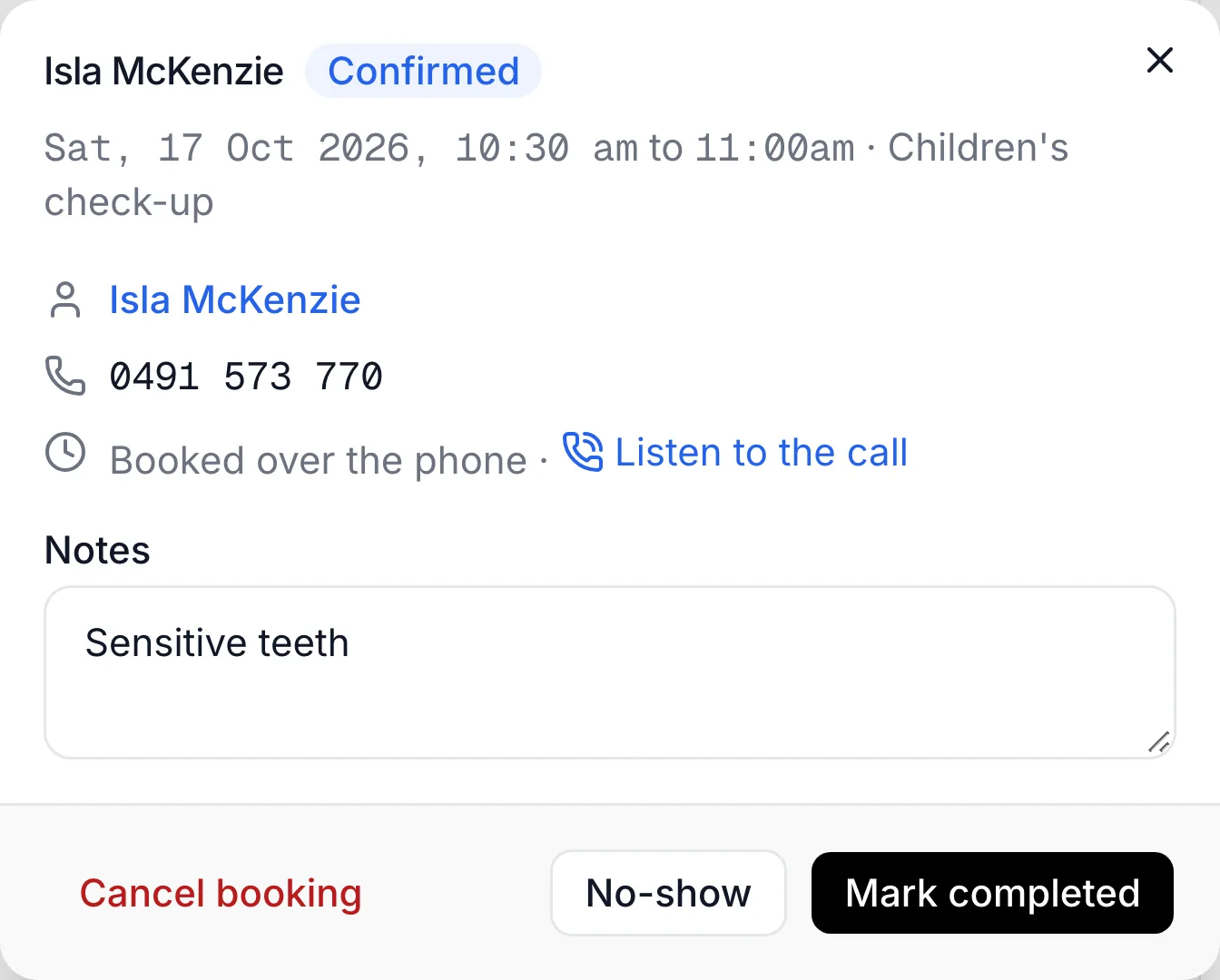
Click the customer's name to open everything about them on Customers.
Add notes
Type in Notes and click Save notes.
Mark what happened
After the appointment, click Mark completed, or No-show if they didn't turn up.
Cancel it
Click Cancel booking, then Yes, cancel. It stays on the calendar, crossed out, and the time is free again. It's also removed from any calendar you've connected.
Cancelling here doesn't text or email the customer. Let them know yourself.
Move it to another time
There's no move button. Cancel the booking, then add it again at the new time. Callers can also ring your agent to move or cancel their own booking.
The booking shows its new status (Completed, No-show or Cancelled) on the calendar and in the booking box.
Undo
Open the booking and click Restore to confirmed.
If something's not right
I can't find Cancel booking
It only shows on confirmed bookings. For a completed or no-show booking, click Restore to confirmed first.
I deleted it in Google Calendar, but it's still on Bookings
Lightspire doesn't read changes back from your calendar. Cancel it on Bookings too, so the time is offered again.
A cancelled booking is still in my calendar
Lightspire couldn't remove it, so delete the event in your calendar by hand. If it keeps happening, check the calendar on Integrations.
I need a list of all my bookings
Click Export CSV at the top of the Bookings page.