See everyone who has called you
Every person who rings your Lightspire number becomes a customer, with their number, name, calls and bookings in one place. You never type them in: the list builds itself. Add your own notes and tags, and export it whenever you like.
Before you start
- Your agent has taken at least one call. Until then the page says "Every caller becomes a customer here".
- You're signed in. Owners and team members can both see and edit customers.
Five steps
Open Customers
In the sidebar, under Activity, click Customers. The heading tells you how many customers you have. Each row shows the Customer (with any tags), their Phone, Email, how many Calls and Bookings they've had, and when they were Last seen.
The list covers every agent on your account, so customers from all your locations are here together.
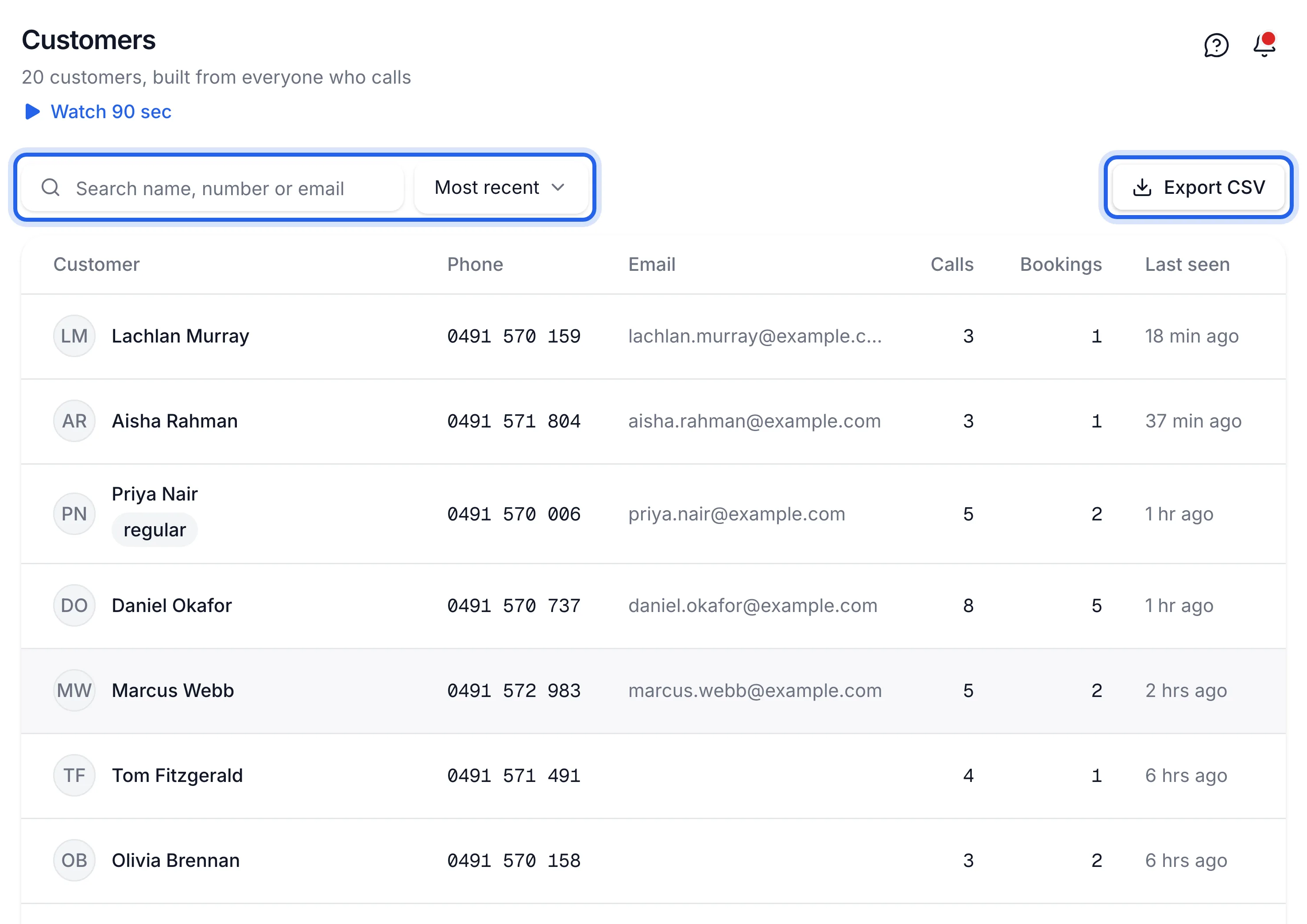
Search and sort
Type a name, a mobile number or an email address into "Search name, number or email". Results update as you type.
Use the sort menu next to it to order the list by Most recent, Most calls, Most bookings or Name. Your regulars rise to the top with Most calls.
Open a customer
Click a row. The customer page shows their number and email (tap either to call or email them), when they first called, and three counts: Calls, Bookings and Upcoming. Below that are their Calls (click one to hear it), their Bookings (click one to open it on the calendar) and any texts sent to or from them.
If you see Opted out of texts, they replied STOP and no texts go to that number.
Add notes and tags
Click Edit. You can change:
Field Use it for Name Fix a name the agent misheard Email Add or correct their email Tags Short labels, separated by commas, such as vip, regular, newNotes Preferences, allergies, how they found you Click Save changes. The phone number can't be edited: it stays as it came in on the call. Tags show under the name in the list; notes show on the customer page.
Export the list
On the Customers page, click Export CSV. A file called
lightspire-customers-{date}.csvdownloads, with each customer's name, phone, email, number of calls and bookings, first and last seen, tags and notes. It opens in Excel, Numbers or Google Sheets.
You can find a caller by name or number, see their calls and bookings on one page, and your notes and tags show against them.
Undo
To remove someone, open the customer and click Delete customer, then confirm. Their calls and bookings stay, but they're no longer linked to a customer. This can't be undone. If the same number rings again, they're added as a new customer.
If something's not right
A caller shows as "Unknown caller"
The agent didn't catch a name on the call. Click Edit and add it. A later call fills in a missing name or email by itself, but never overwrites one you've entered. Callers on a blocked or private number aren't added as customers, because there's no number to match them by; their calls are still on the Calls page.
The same person is listed twice
A customer is matched by phone number, so someone who rings from two numbers shows up twice. Add the same tag to both, or delete the one you don't need.
I can't find someone I know called
Search by the last few digits of their number. If they rang a while ago, sort by Name or Most calls instead of Most recent. A caller who hung up before the agent answered may only be on the Calls page.