Make a test call
Hear your agent for yourself before your customers ring. Try it in your browser first, then make one real call and check what Lightspire recorded.
Watch it done
Read the transcript
0:00 Make a test call
0:03 Before customers ring, hear your receptionist for yourself. There are two ways: in your browser, and with a real call.
0:11 Open the Agent page, then the Test call tab. It uses your latest changes on the other tabs, even before you save.
0:17 Click Start a test call and allow your microphone. Talk like a customer: ask a price, then ask to book. What you both say appears underneath. Bookings made here are pretend: nothing is saved, recorded or charged.
0:31 End the call when you're done. Test calls stop after two minutes.
0:35 Now make a real call. Ring your Lightspire number from your mobile. This one is recorded, books for real, and uses talking time.
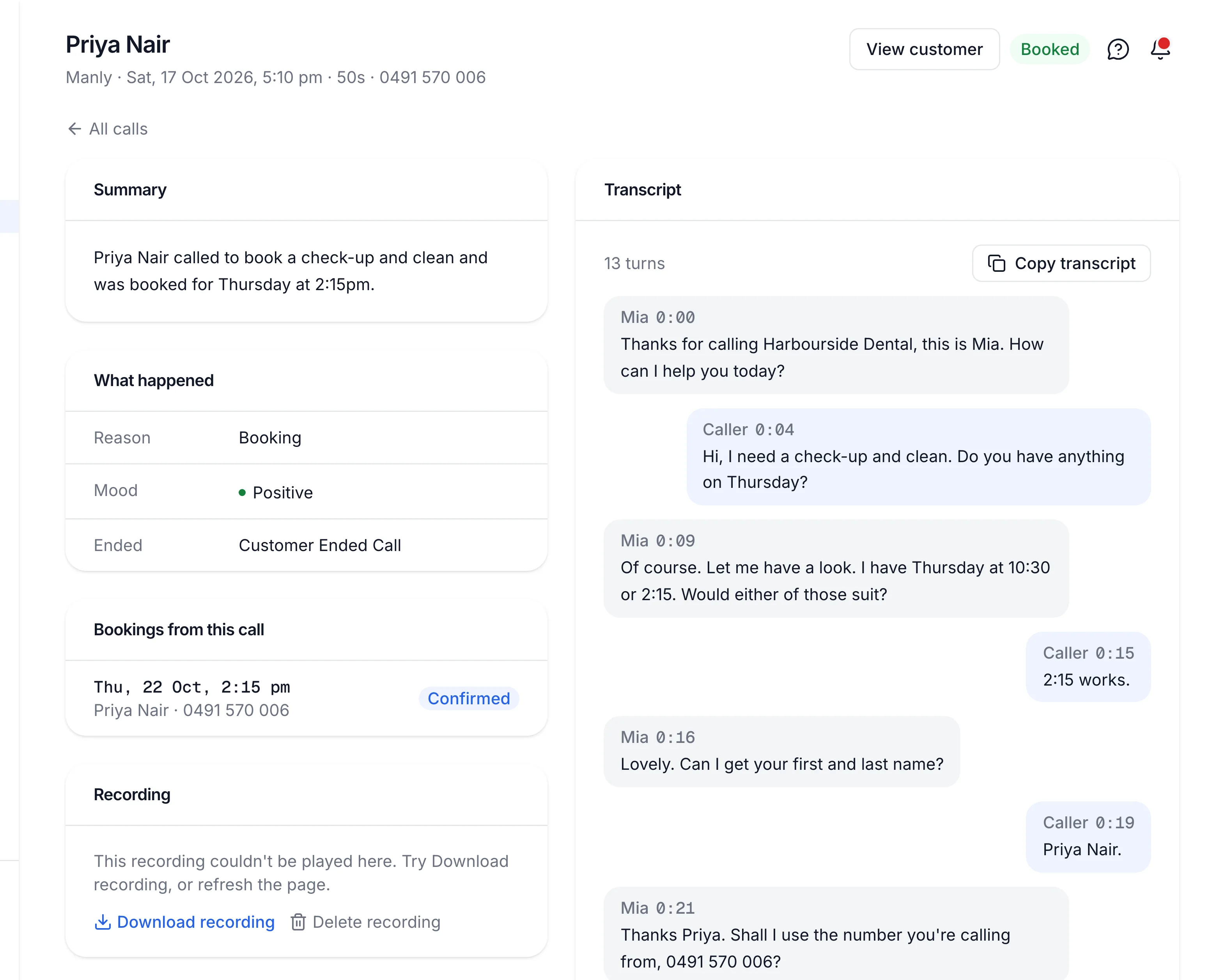
0:44 Hang up, and the call appears on the Calls page with a recording, a transcript and a summary. If you booked, it's on the Bookings page too.
0:52 Cancel any test booking from there, so the time is free again.
0:57 Next, fine-tune your receptionist's voice and greeting.
Before you start
- Your number is live. If not, see Get your Australian number.
- A computer or phone with a microphone, for the browser test.
- Your mobile, for a real call. To test your divert, a second phone as well.
Six steps
Open the Test call tab
Click Agent in the sidebar, then the last tab, Test call. You'll see Hear it now.

Talk to it in your browser
Click Start a test call and allow your microphone if the browser asks. Talk like a customer: ask a price, then ask to book. What you both say shows underneath. Click End call when you're done.
Browser test (Test call tab) Real call to your number Uses changes you haven't saved Yes: name, voice, greeting, and the description and instructions on Knowledge No, only saved settings Makes real bookings No, nothing is saved Yes, on Bookings and your connected calendars On the Calls page No, and nothing is recorded Yes, with recording, transcript and summary Uses talking time No Yes Puts callers through to you No Yes, if Transfers is on Longest call 2 minutes As long as it needs Browser test calls don't say "Calls are recorded." Real calls do.
Ring your Lightspire number
From your mobile, ring your Lightspire number. It's on the Phone number page. Ask what a real caller would, and book a time if you want to test bookings.
Check the call on the Calls page
Hang up and open Calls. Your call is at the top. Click it to see the Summary, play the Recording and read the Transcript. If you booked, it's also on Bookings, with a small phone icon.
Test your divert from another phone
If you've diverted your business number, ring that number from another phone. Your agent should answer. Ringing your mobile from itself doesn't test the divert.
Cancel any test booking
Open Bookings, click the test booking, then Cancel booking and Yes, cancel. The time is free again. See Change or cancel a booking.
Your real test call is at the top of the Calls page with a recording and a transcript, and your agent answered when you rang your business number from another phone.
If something's not right
It says "Your browser blocked the microphone"
Click the icon in the address bar, allow the microphone for this site and try again. If it says "No microphone was found", plug one in. Or skip the browser test and ring your number instead.
Callers hear "can't take calls right now"
Your agent is paused, out of talking time, or the plan isn't active. Read the card at the top of the Agent page. See Pause or resume answering calls.
It gave a wrong answer
Your agent answers only from what you've told it. Fix it on the Knowledge tab and save; changes go live on the next call. See Teach your agent the answers.
My call isn't on the Calls page
Give it a minute after you hang up. Browser test calls never appear there; only calls to your number do.