Find a call and play the recording
Every call your agent answers is saved with a recording, a transcript and a short summary. Find the one you need in a few seconds, then listen to it, download it or copy what was said.
Watch it done
Read the transcript
0:00 Find a call and play the recording
0:03 Every call your agent answers is saved with a recording, a transcript and a short summary. Here's how to find one fast, even weeks later.
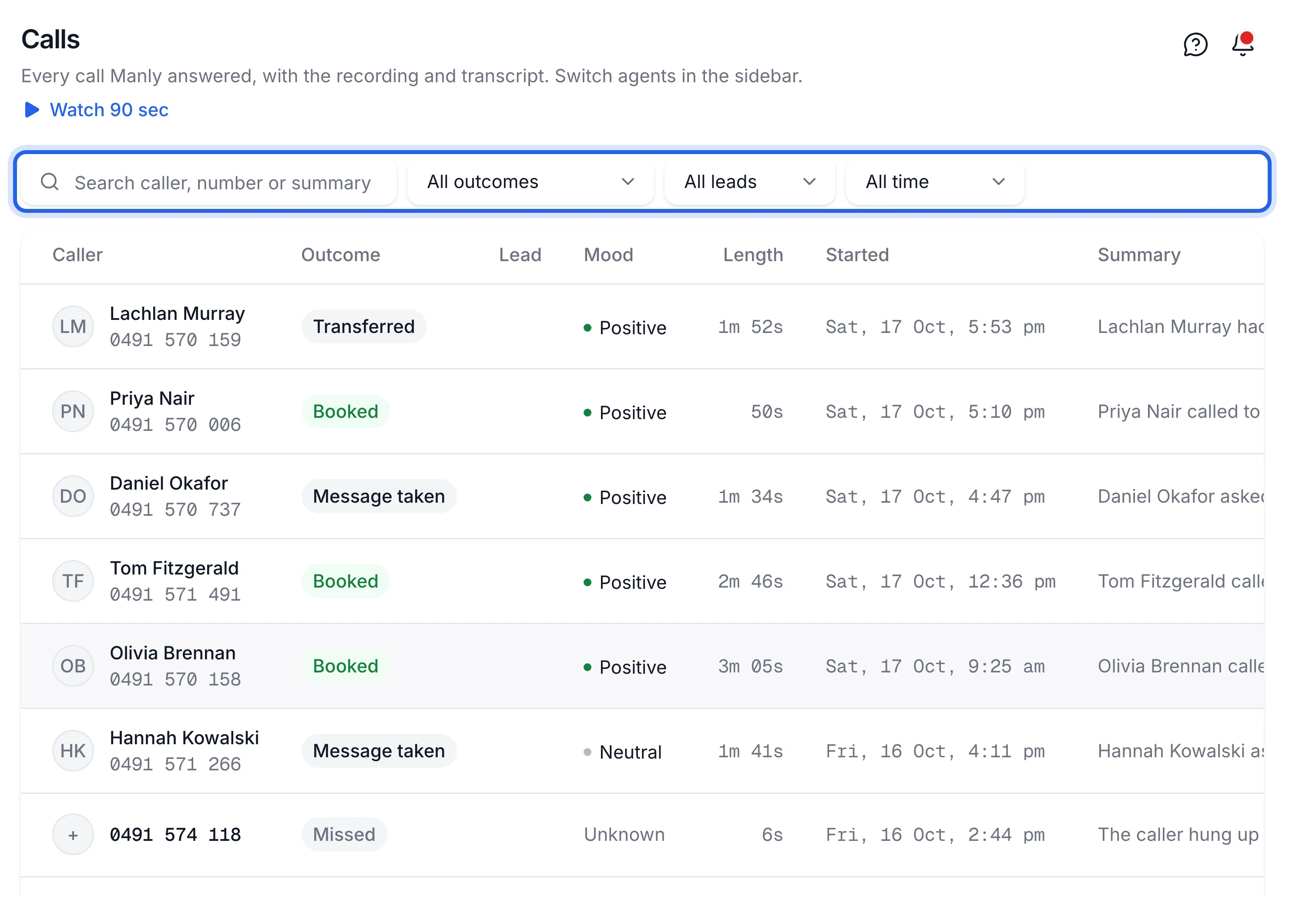
0:12 Open Calls in the sidebar, under Activity. The newest calls are at the top, with the caller, the outcome, their mood, how long it ran and a one-line summary.
0:22 Type a name, a phone number or a word from the call into the search box, then press Enter. Search looks through names, numbers, summaries and transcripts, so one word is often enough.
0:33 Narrow it down with the two menus. Pick an outcome, such as Booked or Message taken, and a date range, such as Last 7 days. Clear puts everything back.
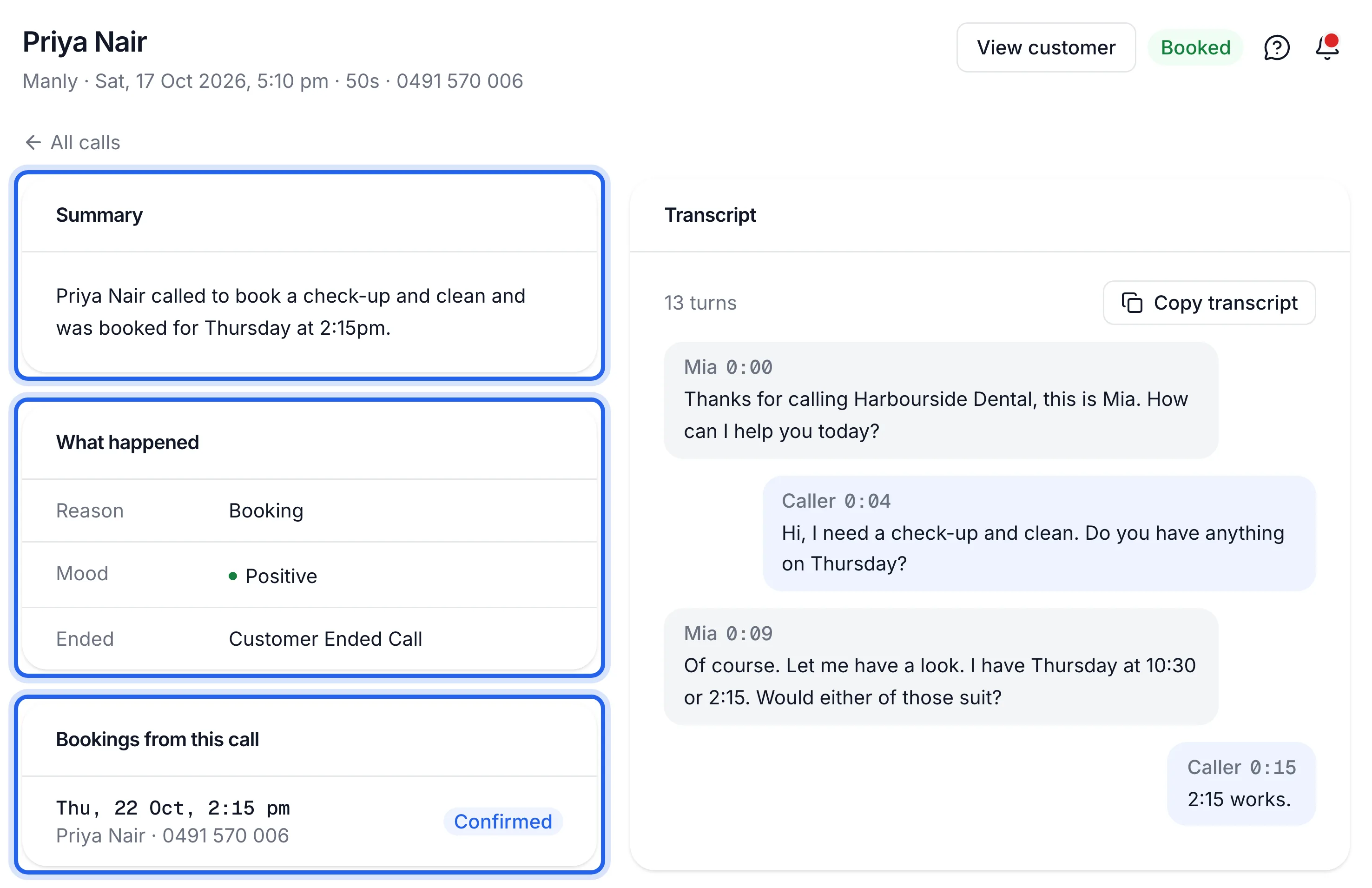
0:45 Click a call to open it. The summary and What happened tell you why they rang, how they felt, and any number or message they left. Bookings from this call links straight to the booking.
0:56 Press play to hear the recording, or Download recording to keep a copy. The transcript sits beside it, line by line with timestamps. Copy transcript puts the whole conversation on your clipboard.
1:09 Got more than one location? Calls shows the agent chosen at the top of the sidebar. Switch agents there, and the list reloads with the other location's calls.
1:17 Found it? Next, open the customer to see every call and booking from that person in one place.
Before you start
- Your agent has answered at least one call. If not, ring your Lightspire number first: Make a test call.
- You're signed in to the dashboard. Owners and team members can both see calls.
Six steps
Open Calls
In the sidebar, under Activity, click Calls. The newest calls are at the top. Each row shows the Caller, the Outcome, the caller's Mood, the Length, when it Started and a one-line Summary. On a phone some of these columns are hidden; open the call to see everything.
A call that's still going shows Live instead of an outcome.
Search by name, number or a word that was said
Type into the box that says "Search caller, number or summary", then press Enter. It looks through caller names, phone numbers, summaries and the full transcripts, so a single word from the conversation ("crown", "quote", "Saturday") usually finds it. You can type a number the way you'd say it, such as
0491 570 156.Search waits for Enter. The two menus next to it apply as soon as you pick an option.
Filter by outcome and date
Use the menus beside the search box:
Menu Options Outcome All outcomes, Booked, Not booked, Question answered, Message taken, Transferred, Cancelled, No action, Missed, Other Date range All time, Today, Last 7 days, Last 30 days Click Clear to remove the search and both filters. The list shows 25 calls a page; use Previous and Next at the bottom to see more.
Open the call and read what happened
Click a row. The call page shows:
- Summary: a few sentences on why they rang and how it ended.
- What happened: the Reason, their Mood, a Call back on number, Email and Message when they left one, whether it was Transferred, and how it Ended.
- Answers: their replies to your intake questions, when you've set some up.
- Bookings from this call: click the time to open that booking on the calendar.
Click View customer at the top to see everything else from this caller.
Play, download or copy
Under Recording, press play to listen. Click Download recording to save the audio file to your computer. Some calls also show Stereo version, a second copy with the caller and your agent on separate channels.
Under Transcript, every line is marked with who spoke and when. Click Copy transcript to put the whole conversation on your clipboard, ready to paste into an email or your own system.
See another location's calls
If you have more than one agent, Calls shows the agent chosen in the box at the top of the sidebar. Click that box and pick another agent to see its calls. To compare locations side by side, use Download a report.
You've found the call, heard the recording and can see its summary and transcript on the call page.
If something's not right
The call I just took isn't there
Calls appear as soon as they start, marked Live. The recording, transcript and summary land once the caller hangs up, usually within a minute. If it's still missing, check the agent box at the top of the sidebar: you may be looking at another location's calls.
Search finds nothing
Clear the Outcome and Date range filters first; they apply on top of the search. Then try fewer words, or just the last few digits of the caller's number.
The recording won't play or download
Refresh the page and try again; a recording link stays valid for 30 minutes, so a page left open for a while needs a refresh. If a call shows "No recording for this call", there's nothing to play: email support@lightspire.ai with the time of the call.
The transcript says "No transcript for this call"
Very short calls, such as a caller who hangs up straight away, may have no words to transcribe. The call is still listed with its time and number.