Set up your business and voice agent
In about ten minutes you'll have your business details, your opening hours and a voice agent with its own name and voice, ready for a phone number.
Watch it done

Read the transcript
0:00 Set up your business and receptionist
0:03 Setting up takes about ten minutes. You'll add your business, your hours and your receptionist, then get a number.
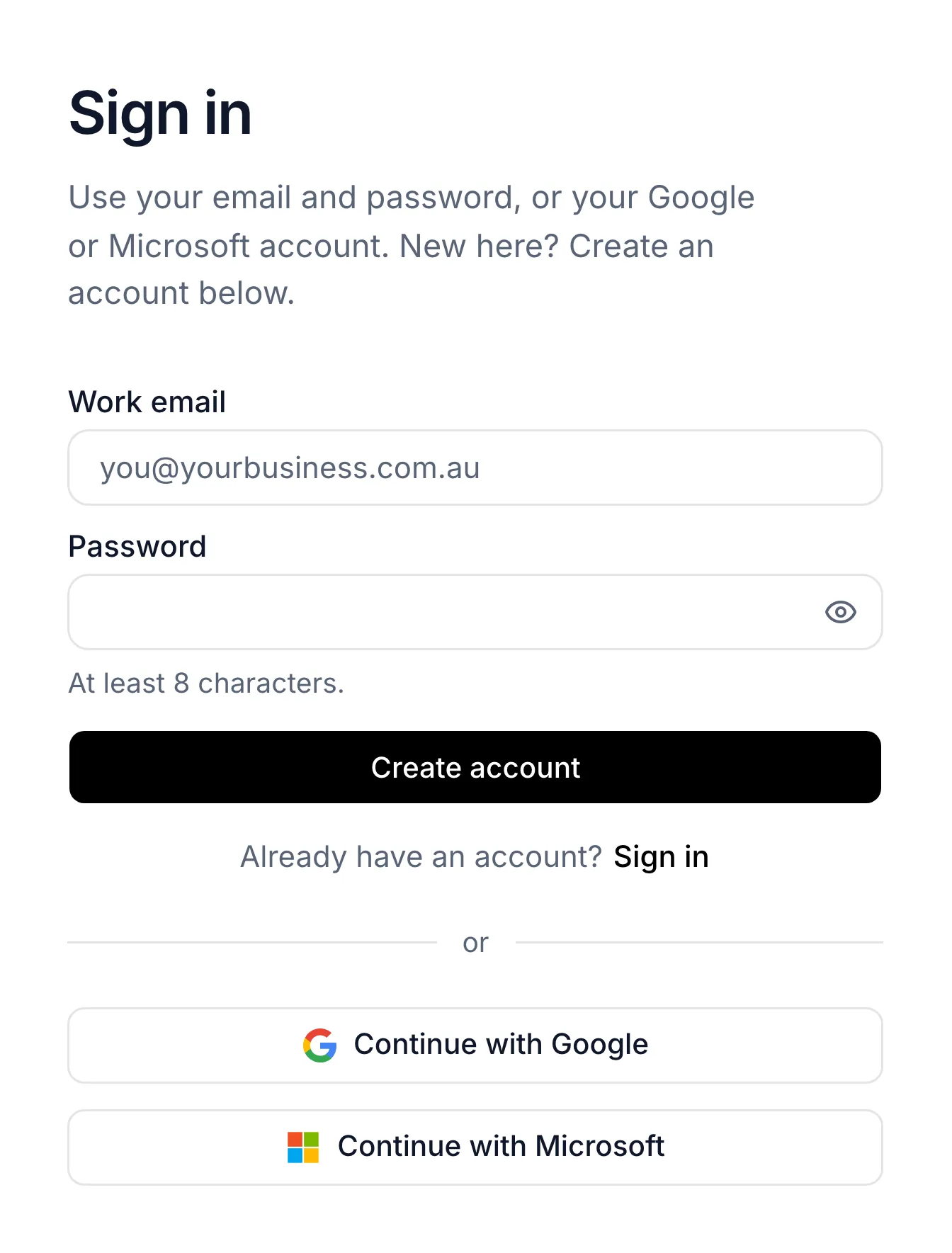
0:10 Click Get started and sign up with Google, Microsoft or an email address.
0:16 Setup opens with four steps across the top.
0:19 Start with your business name. Your receptionist introduces you by it. Add your mobile, the email for booking alerts, your address and your time zone.
0:28 Set your opening hours day by day. Bookings are only offered inside them. Pick a default booking length, then click Continue.
0:35 Give your receptionist a name and choose one of five Australian voices. Leave the greeting blank to use the standard one. Callers always hear that the call is recorded.
0:46 Under What should it know, write what callers ask about: prices, parking, what to bring, your cancellation rule. Your receptionist only answers from this, and never guesses.
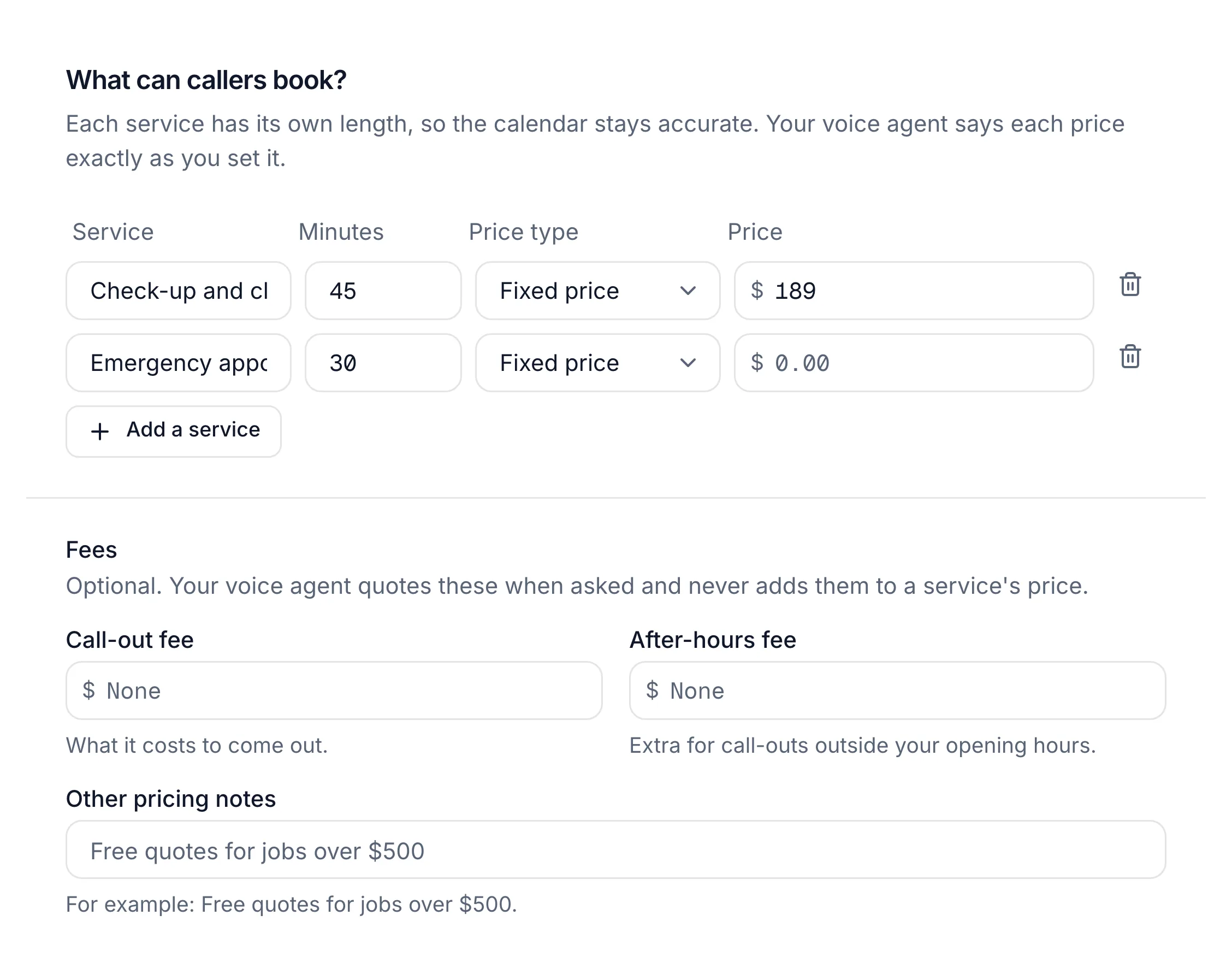
0:57 Add each service callers can book, with how long it takes, and a price if you like.
1:03 Click Start a test call to hear it before you go on, then click Continue.
1:09 Two steps done. Next, choose a plan and get your Australian number.
Before you start
- Your opening hours for each day of the week.
- Your services, with how long each takes, and prices if you quote them on the phone.
- A few lines about your business: where you are, parking, what new customers bring, your cancellation rule. Your agent answers only from what you write.
- A microphone, if you want to hear your agent before you finish (optional).
Seven steps
Create your account
Go to lightspire.ai and click Get started. Choose Continue with Google, Continue with Microsoft, or type an email and password and click Create account. Setup opens with four steps across the top: Your business, Your voice agent, Plan and Your number.
Signing up from your Lightspire demo link? Your details are filled in from the demo, so you only check them, and the third step is Free trial.
Fill in your business details
Under Tell us about your business, type your Business name. It's the only field you must fill in, but the others help your agent.
Field What it's for Business name Your agent introduces your business by this name Type of business Pick the closest match from the list Your mobile For booking texts, and so your agent can give callers a number to reach you Business email Where booking emails go Website Your business website Address Your agent can tell callers where to find you Time zone Your hours and bookings use it 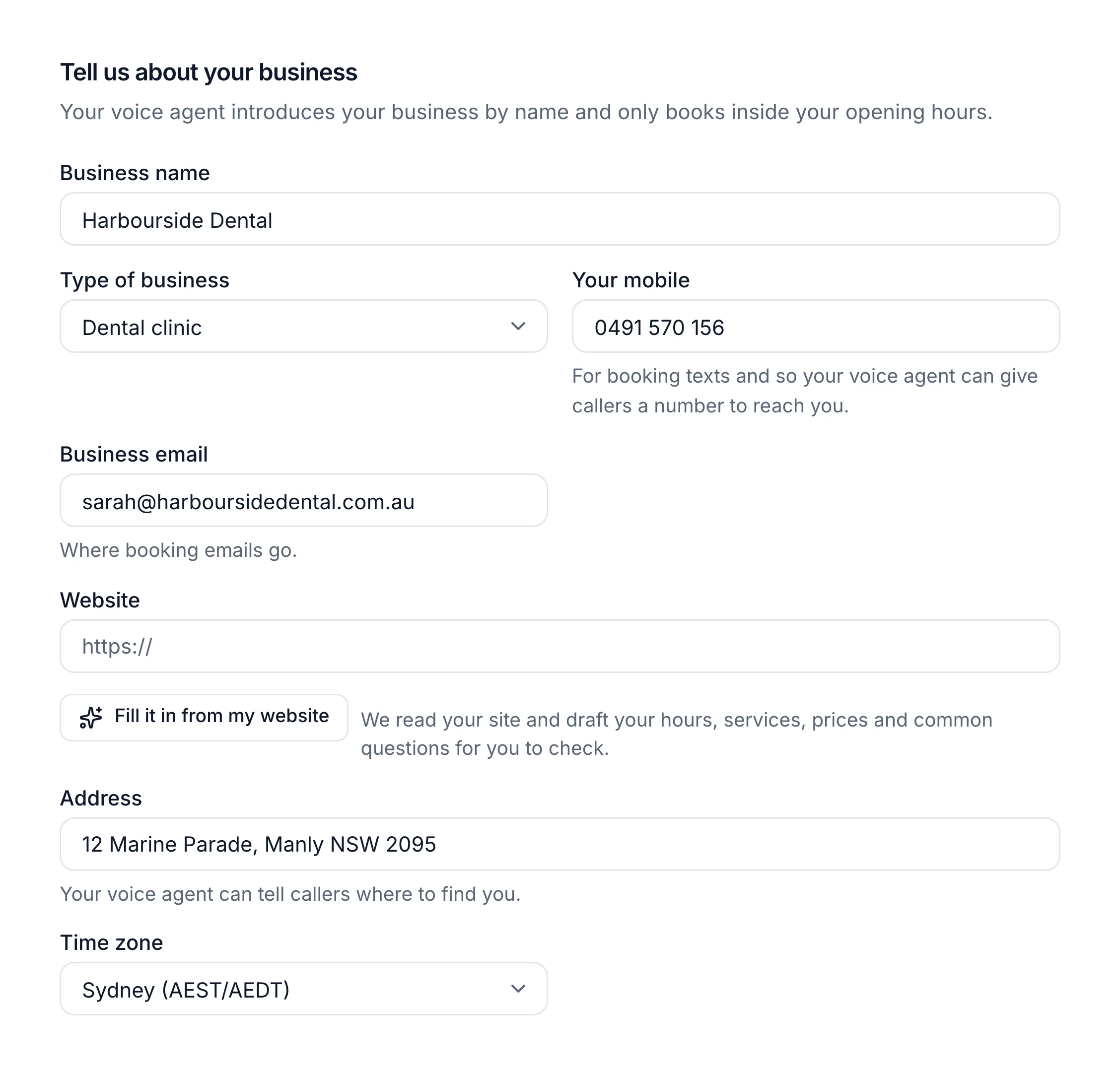
Set your opening hours
Under Opening hours, switch each day Open or Closed and set the times. Bookings are offered inside these hours only. Then choose a Booking length, the default length of an appointment, and click Continue.
You need at least one open day, and each closing time must be after the opening time.
Name your voice agent and pick a voice
Under Set up your voice agent, type the Voice agent's name. It starts as Mia. Choose one of the five Australian voices: Bronte, Grace, Aila, Arlo or Fraser. Leave Greeting blank to use the standard one, or write your own.
The standard greeting sounds like "Thanks for calling Harbourside Dental, this is Mia. How can I help you today?" On real calls, callers also hear "Calls are recorded." before the question.
Tell it what to know
Under What should it know?, write about your business in plain sentences. Your agent answers only from what you write here and never guesses. You have up to 12,000 characters.
Example (edit it to suit you):
We're a family dental practice in Manly. Open Monday to Friday 8am to 6pm, Saturday 9am to 1pm.
Check-up and clean $189. Emergency appointments the same day.
Parking: two hours free in the council car park behind the surgery.
New patients: bring your Medicare card and any health fund card.
Cancellations: please give 24 hours notice.
Add what callers can book
Under What can callers book?, type each service with its Minutes and, if you like, a price. Click Add a service for the next one. Each service keeps its own length, so the calendar stays accurate.
Hear it, then continue
Under Hear it now, click Start a test call and talk to your agent through your microphone. It uses what you've typed, even before you continue, and nothing is recorded. When you're happy, click Continue.
The steps at the top show Your business and Your voice agent ticked, and you're on Plan (or Free trial). Next, get your Australian number.
If something's not right
It says "Open on at least one day" or "closing time must be after opening time"
Switch at least one day to Open, and check each day closes after it opens. To stay open until midnight, set the closing time to 00:00.
The test call won't start
If you see "Your browser blocked the microphone", click the icon in the address bar, allow the microphone and try again. You can skip it and test later from the Agent page. See Make a test call.
I need to change something after setup
Business details and time zone are in Settings, on the Business tab. The name, voice, greeting, knowledge, services and opening hours are tabs on the Agent page. See Change your voice and greeting.