Choose your agent's voice and greeting
Give your agent a name, a voice and a greeting that sound like your business. Callers hear all three from the first ring.
Watch it done
Read the transcript
0:00 Choose your agent's voice and greeting
0:03 Your agent's voice and greeting are the first thing every caller hears. Here's how to name it, choose its voice and write what it says.
0:10 In your dashboard, open Agent. The first tab is Voice and greeting. If you have more than one location, pick the agent in the sidebar first.
0:21 Type the name callers will hear in Receptionist's name. Ours is Mia. Use any first name that suits your business.
0:27 Next, pick a voice. There are five, all Australian: Bronte, Grace and Aila are female, Arlo and Fraser are male. Each card says what it suits best.
0:39 Now the greeting. Leave it blank and callers hear the default, with your business name and your agent's name. Or write your own, up to four hundred characters. Lightspire adds "Calls are recorded" before the question, so you don't need to.
0:53 Want it to sound like a busy front desk? Switch on Background office sound. Callers hear quiet office sounds behind your agent.
1:01 Before you save, open the Test call tab and press Start a test call. You talk to your agent from the browser, with the changes you just made.
1:10 Happy with it? Press Save changes. It goes live on the next call.
1:14 Done. Your next caller hears the new voice and greeting. Next, add your services, prices and opening hours.
Before you start
- You've finished setting up your business. If not, start with Set up your business.
- Your computer's microphone works, so you can hear the result on a test call.
- If you have more than one location, decide which agent you're changing. Each one has its own voice and greeting.
Six steps
Open the Voice and greeting tab
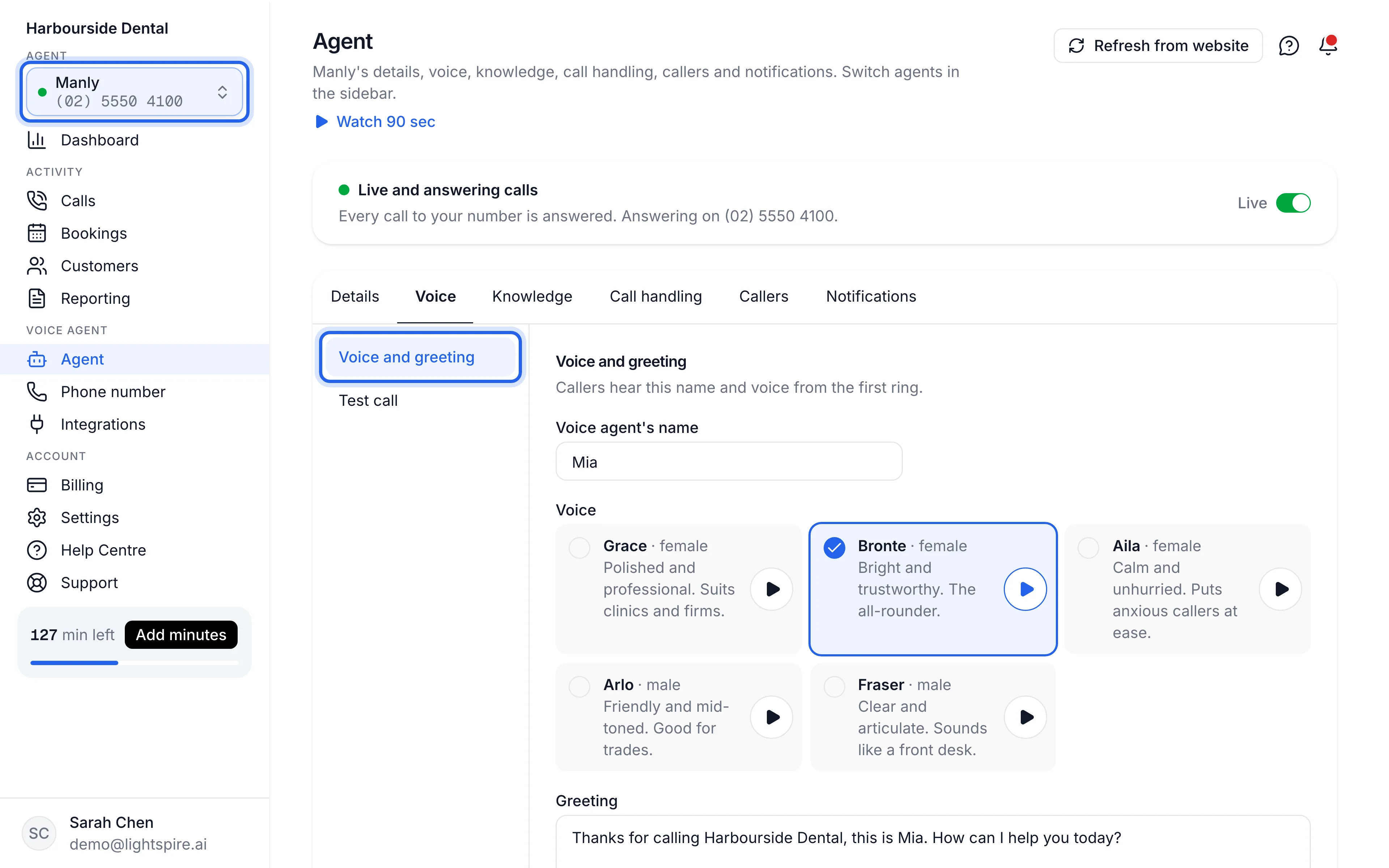
In your dashboard, open Agent. Voice and greeting is the first tab. If you have more than one agent, pick the right one from the agent switcher at the top of the sidebar first.
Name your voice agent
Type a first name in Voice agent's name. Callers hear it in the greeting, and your agent uses it if they ask who they're speaking to. The default is Mia. Up to 40 characters.
Pick a voice
Under Voice, click a card. All five voices are Australian English.
Voice Suits Grace female Polished and professional. Clinics and firms (the default). Bronte female Bright and trustworthy. The all-rounder. Aila female Calm and unhurried. Puts anxious callers at ease. Arlo male Friendly and mid-toned. Good for trades. Fraser male Clear and articulate. Sounds like a front desk. 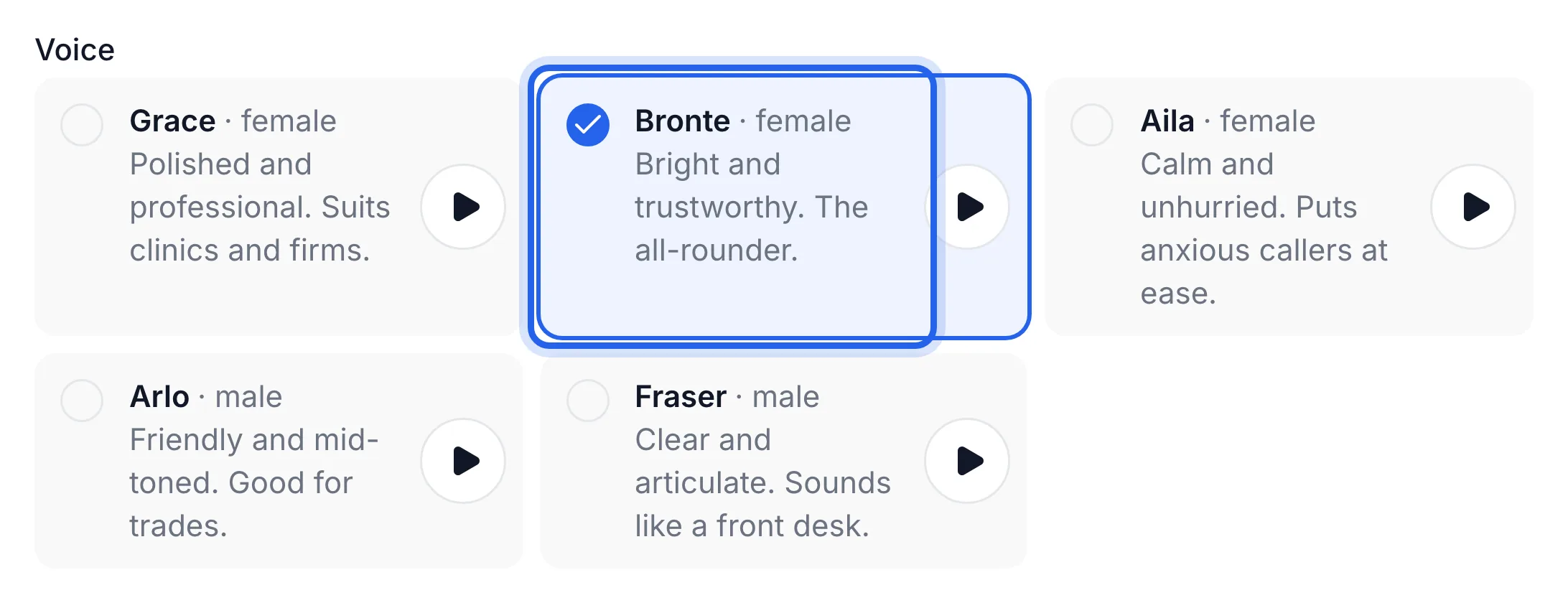
Write your greeting
Type what your agent says when it answers in Greeting, up to 400 characters. Leave it blank to use the default, which is shown in the box as a grey example:
Thanks for calling Harbourside Dental, this is Mia. How can I help you today?Lightspire adds "Calls are recorded." to every greeting, just before the question, so callers hear it before they start talking. If your greeting already mentions recording, it isn't added twice.
Keep it short. One sentence of welcome and a question works best on the phone.
Switch on background office sound, if you like it
Background office sound plays quiet office sounds behind your agent, so it sounds like a busy front desk. It's off until you switch it on.
Hear it, then save
Open the Test call tab and press Start a test call. You talk to your agent from the browser, with the changes you've just made, even before you save. Nothing is recorded. When you're happy, press Save changes at the bottom of the page.
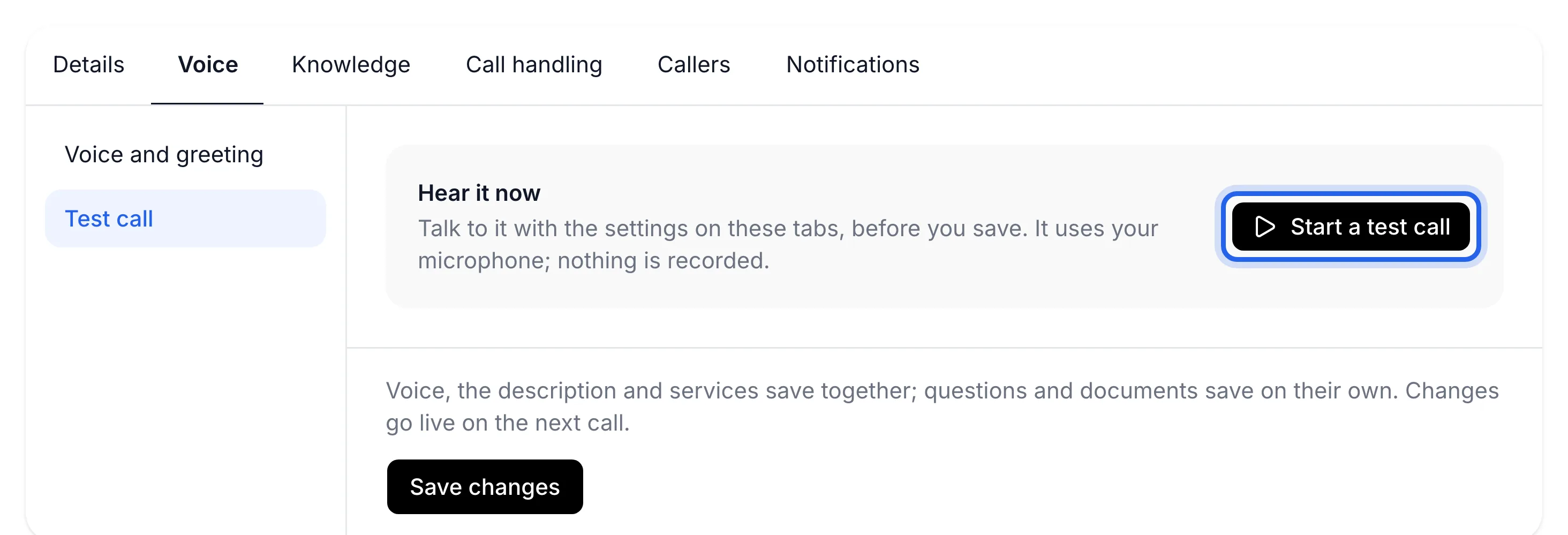
The name, voice, greeting, description and services all save together with this one button.
You see "Saved. Changes go live on the next call." and your next test call answers with the new name, voice and greeting.
Undo
Pick your old voice again, or clear the Greeting box to go back to the default, and press Save changes.
If something's not right
Callers still hear the old greeting
Check you pressed Save changes: the test call uses unsaved changes, real calls don't. A call that's already in progress keeps the old settings. The next one uses the new ones.
The greeting says the wrong business name
The default greeting uses the business name for this agent. On the Agent page, open Label and address and check Business name (optional). Left empty, it uses your account's business name from Settings.
The test call won't start
Your browser needs permission to use the microphone. Allow it when the browser asks, or in the browser's site settings, then press Start a test call again. You can also ring your Lightspire number from a phone. See Make a test call.
The voice sounds robotic or cuts out
Try another voice first; some suit a business better than others. If it still sounds wrong on real calls, see The agent sounds robotic.