Add your services, prices and opening hours
Tell your agent what callers can book, how long each service takes and what it costs, and when you're open. It books only inside your hours and quotes only the prices you give it.
Watch it done
Read the transcript
0:00 Add your services, prices and opening hours
0:03 Your agent books callers into your services and answers questions about prices and hours. It only knows what you put in, so let's put it in.
0:11 Open Agent, then the Services tab. This list is what callers can book. It's shared by all your agents.
0:19 For each service, type its name, how many minutes it takes, and the price. Press Add a service for the next one. The length keeps your calendar accurate.
0:30 Price is optional. Leave it empty and your agent won't quote a price; it says it isn't sure and offers to take a message.
0:37 When the list is right, press Save changes at the bottom of the page.
0:41 Now open the Opening hours tab. Switch each day open or closed, and set the times. They're in your business's time zone.
0:49 Your agent only offers bookings inside these hours, and answers "are you open Saturday?" from them. Each location's agent has its own hours.
0:58 This tab saves on its own, so press its Save changes button.
1:02 Then open Test call and ask what a check-up costs, and whether you're open on Sunday.
1:07 If it answers both, you're set. Next, teach your agent the answers to the questions callers ask most.
Before you start
- A list of your services with a length in minutes for each, and prices if you want your agent to quote them.
- Your opening hours for each day of the week.
- If you have more than one location: services are shared by all your agents, but each agent has its own opening hours.
Six steps
Open the Services tab
In your dashboard, open Agent, then the Services tab. It's headed "What can callers book?".
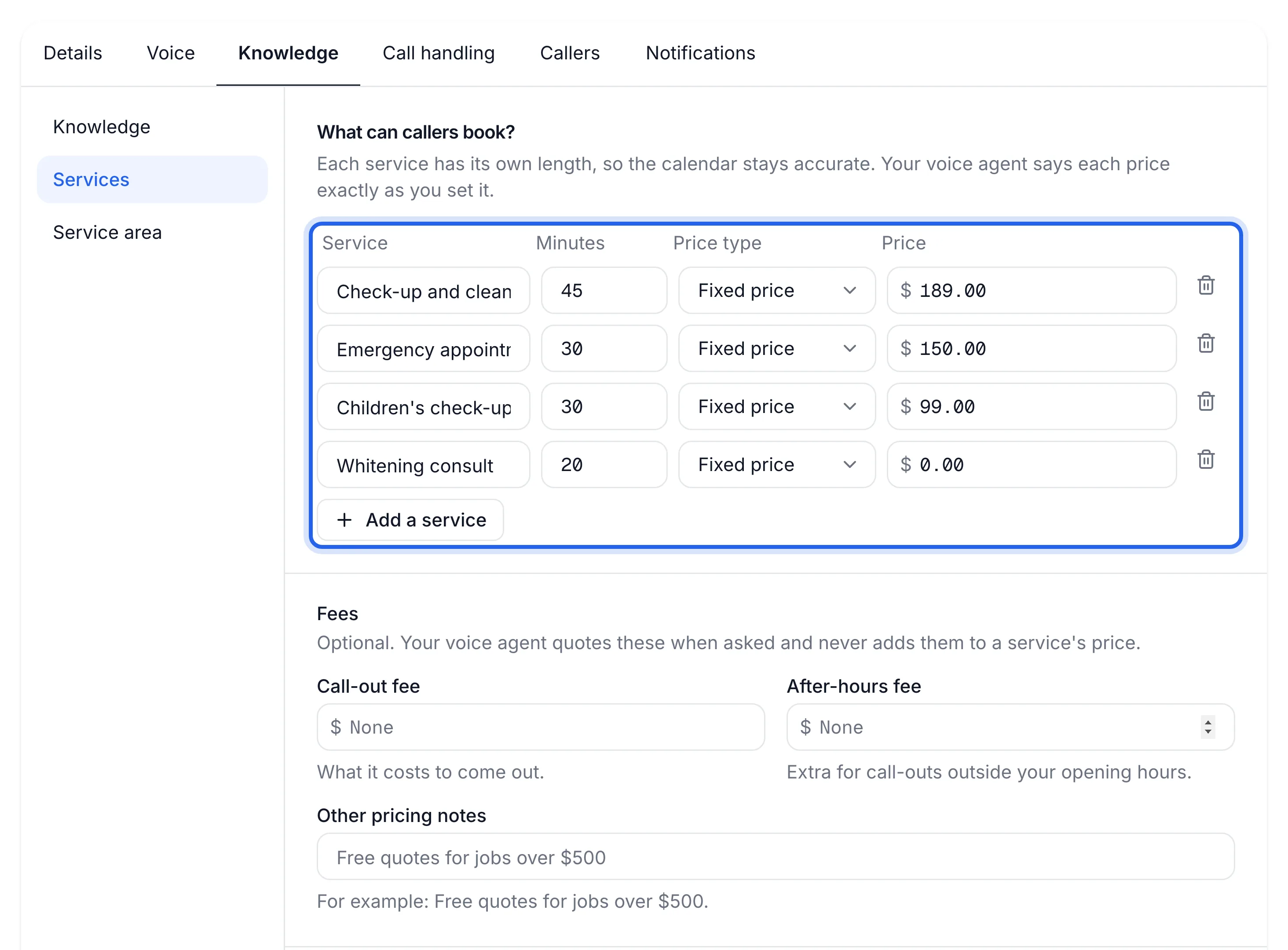
Add each service with its length and price
Fill in one row per service: Service (its name), Minutes (how long it takes) and Price (optional). Press Add a service for the next row. The bin icon at the end of a row removes it.
Service Minutes Price Check-up and clean 45 189.00 Emergency appointment 30 150.00 Children's check-up 30 99.00 Each service's length is what your agent books in your calendar, so get it right. Lengths go from 5 to 480 minutes, in steps of 5.
Leave a price empty and your agent won't quote one. It says it isn't sure and offers to take a message.
Save your services
Press Save changes at the bottom of the page. You'll see "Saved. Changes go live on the next call."
This button also saves the Voice and greeting and Knowledge tabs, so edits there go live at the same time.
Set your opening hours
Open the Opening hours tab. Each day has a switch: turn it on for the days you're open and set the opening and closing times. A day you switch on starts at 9:00 to 17:00; change it to your real hours. Times are in your business's time zone.
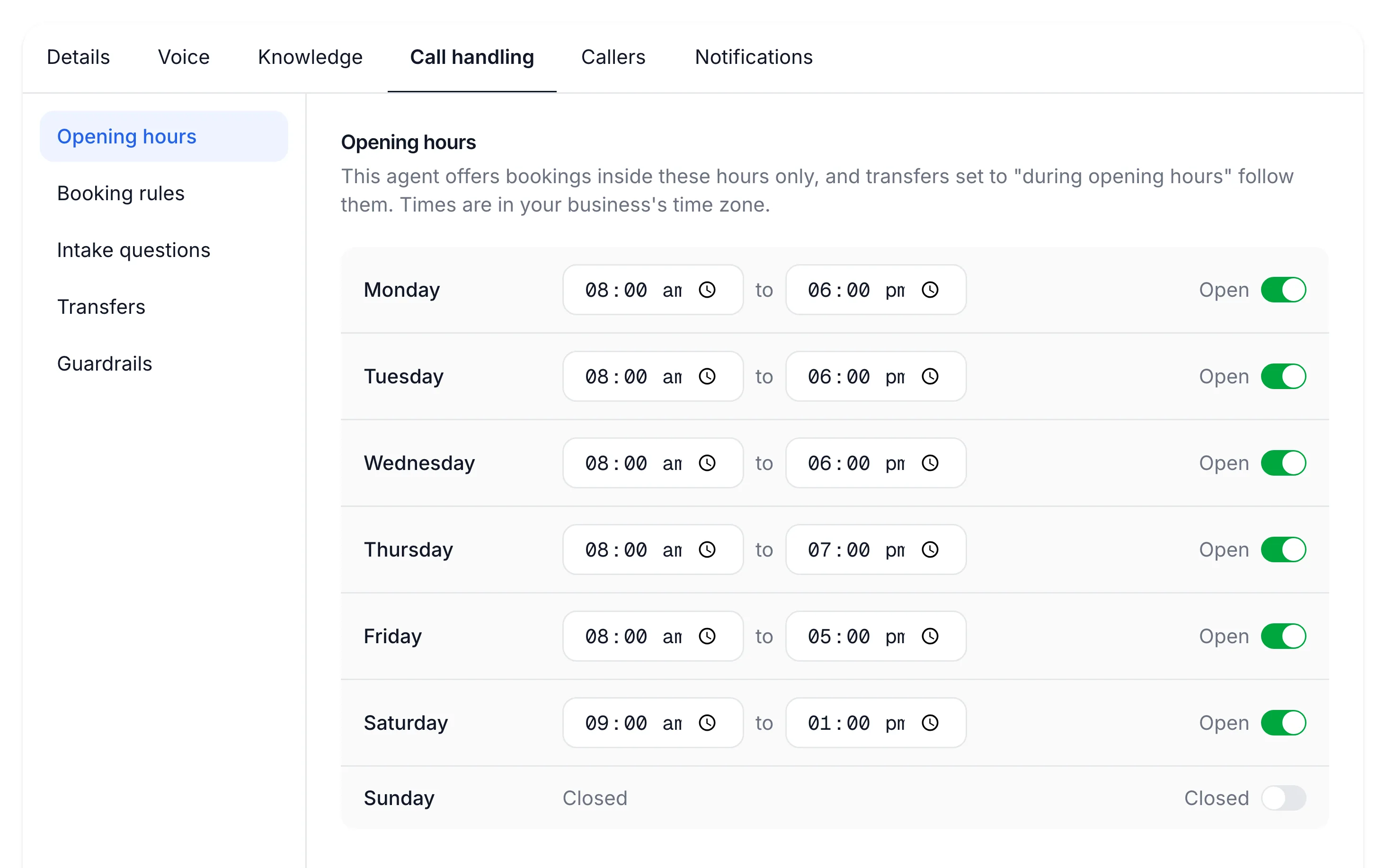
Save the hours
This tab saves on its own. Press its Save changes button. You'll see "Opening hours saved".
Your agent offers bookings inside these hours only, and answers "are you open Saturday?" from them. Transfers set to "During opening hours" follow them too.
Check it with a test call
Open the Test call tab and press Start a test call. Ask what one of your services costs, and whether you're open on a day you're closed.
Your test call quotes the right price for a service and gives the right answer about your hours.
If something's not right
It quotes a different price from my list
Your agent also reads the description on the Knowledge tab. If an old price is written there, delete it so the Services tab is the only place prices live, then press Save changes.
It offers times when I'm closed
Check you saved the Opening hours tab with its own button, and that you're on the right agent (the switcher at the top of the sidebar). The soonest and furthest times it offers are set in Booking rules.
It says we're open on a public holiday
Your weekly hours don't know about public holidays. Your agent won't say you're closed on a date unless your calendar shows it, so block out the whole day in your calendar.
I see "Closing time must be after opening time"
On that day the closing time is earlier than (or the same as) the opening time. Fix the time and save again. You also need at least one day open.