Teach your agent the answers to common questions
Write down what callers usually ask, once, and your agent gives the right answer every time. It answers only from what you've written and never guesses.
Watch it done
Read the transcript
0:00 Teach your agent the answers to common questions
0:03 Callers ask the same things every day. Parking, new patients, cancellations. Here's how to teach your agent the answers, so it never has to guess.
0:13 Open Agent, then the Knowledge tab. The big box is your description. Write about your business in plain sentences, like you'd tell a new receptionist.
0:23 Your agent answers only from what you write here, and never guesses. If it's not written down, it says it isn't sure and offers to take a message.
0:31 For a question callers ask often, use Questions and answers. Press Add a question, type it the way a caller would say it, then the answer you want them to get.
0:41 With more than one location, choose who uses it: all agents, or only one. Press Save question. It's live from the next call.
0:50 Extra instructions is for how your agent behaves, like always asking whether the caller is a new patient.
0:56 The meter at the top shows how much your agent knows, out of twenty thousand characters. Keep it short and clear; you don't need to fill it.
1:04 Press Save changes for the description and instructions. Questions and answers have already saved on their own.
1:10 Ask a test call one of your questions to hear it answered.
1:13 Next, see the questions your agent couldn't answer.
Before you start
- A rough list of what callers ask most: parking, new customers, cancellations, payment, what you do and don't do.
- Your services and opening hours are in. If not, do Add your services, prices and opening hours first.
Six steps
Open the Knowledge tab
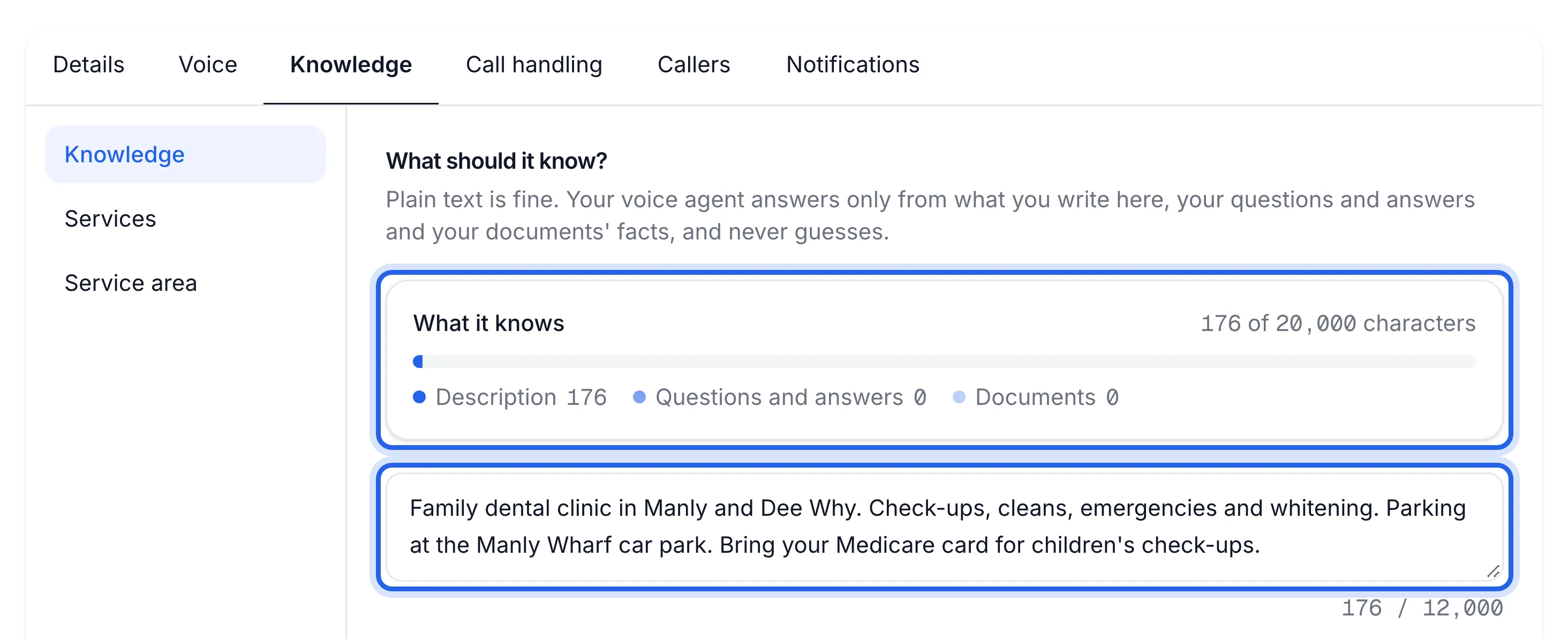
In your dashboard, open Agent, then the Knowledge tab. It's headed "What should it know?".
Write what your business is about
In the big box, write about your business in plain sentences, the way you'd brief a new receptionist. Up to 12,000 characters.
We're a family dental practice in Manly. Open Monday to Friday 8am to 6pm, Saturday 9am to 1pm.
Parking: two hours free in the council car park behind the surgery.
New patients: bring your Medicare card and any private health fund card.
Cancellations: please give 24 hours notice.
That's an example. Write your own business's details.
This description is shared by all your agents. Anything only one location should say goes in a question and answer for that agent (next step).
Add a question and answer
Under Questions and answers, press Add a question. Type the Question the way a caller would say it, then the Answer you want them to get. Press Save question.
Question Answer Do you bulk bill? Yes, for children under 16 and concession card holders. Is there parking? Two hours free in the council car park behind the surgery. If you have more than one agent, choose Used by: All agents, or Only one of them.
Each question saves on its own and is live from the next call. You can have up to 100. Use Edit or Remove on a row to change it.
Add extra instructions, if you need them
Extra instructions is for how your agent behaves, not for facts. For example: "Always ask whether the caller is a new or existing patient." These belong to the agent you're on.
Keep an eye on the knowledge meter
The What it knows meter at the top shows how much your agent knows, out of 20,000 characters: your description, your questions and answers and any documents' facts together. If it turns red ("That's over the limit"), shorten something before you save.
Save and test
Press Save changes at the bottom of the page to save the description and extra instructions. Then open Test call, press Start a test call and ask one of your questions.
You see "Saved. Changes go live on the next call." and your test call answers your question the way you wrote it.
If something's not right
It says "I'm not sure" about something I wrote
Write it more plainly, or add a question and answer using the caller's own words. If you have more than one agent, check Used by on that answer includes this agent. Questions the AI assistant couldn't answer also show up for you to answer: see Answer the questions your agent couldn't.
My change isn't heard on calls
The description and extra instructions need Save changes at the bottom of the page. Questions and answers need Save question. A call already in progress keeps the old knowledge.
I see "That's over the limit"
Your agent holds everything it knows in mind during a call, so there's a cap. Shorten the description first: remove anything already on the Services or Opening hours tabs, and long paragraphs callers never ask about.