Answer the questions your agent couldn't
When a caller asks something your agent doesn't know, it doesn't guess. It offers to take a message and writes the question down for you. Answer it once and your agent knows it from the next call.
Watch it done
Read the transcript
0:00 Answer the questions your agent couldn't
0:03 When a caller asks something your agent can't answer, it doesn't guess. It takes a message, and it writes the question down for you.
0:10 You'll find them on your Dashboard, in Questions it couldn't answer. They appear once the call has ended.
0:17 Each one shows how many times it's been asked and when. Start with the ones asked most.
0:23 Press Add answer. The question is filled in for you; tidy the wording if you like, then type the answer.
0:31 With more than one location, the answer starts as that agent's own. Choose All agents to share it. Then press Save answer.
0:39 That's it. Your agent knows it from the next call, and it's added to your Questions and answers on the Knowledge tab.
0:46 Not worth answering? Press Dismiss. If someone asks it again on another call, it comes back.
0:53 To see every question, open Agent, then Knowledge, and scroll to the bottom. Check back each week; it's the quickest way to make your agent smarter.
1:04 Next, choose the questions your agent asks callers when they book.
Before you start
- Your agent has taken some calls. Questions show up once a call has ended.
- You know the answer, or who to ask.
Five steps
Find the questions
On your Dashboard, look for Questions the AI assistant couldn't answer. It shows the latest five, and only appears when there's something to answer. The full list is at the bottom of Agent › Knowledge.
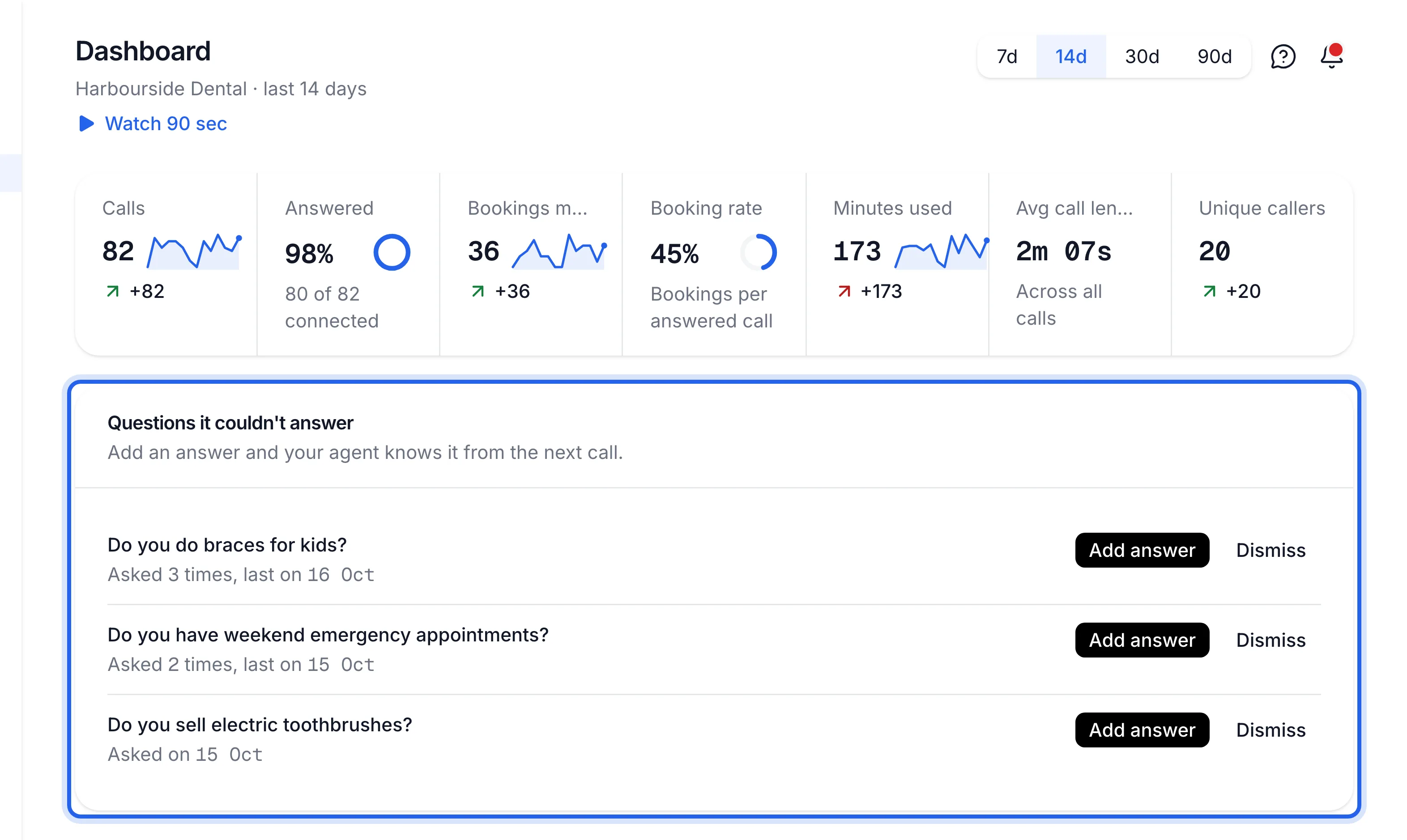
Only questions about your business are listed, written as a general question without the caller's name or number. Requests to book, cancel or speak to someone aren't.
Start with the ones asked most
Each question shows how often it was asked and when, for example "Asked 3 times, last on 14 Oct". Answer the busy ones first.
Add an answer
Press Add answer. The Question is filled in for you; tidy the wording if you like. Type the Answer and press Save answer.
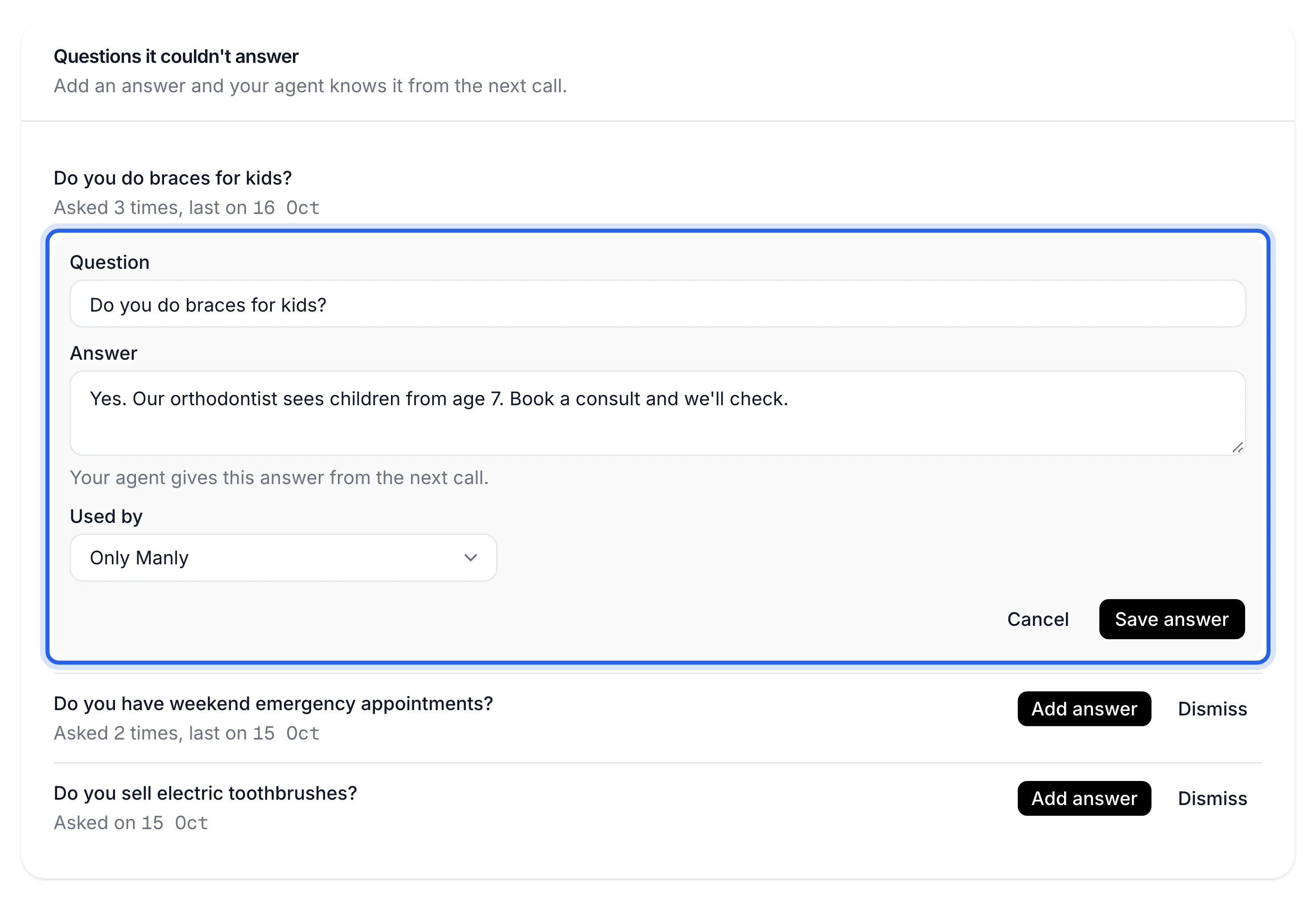
With more than one agent, Used by starts as the agent that was asked. Choose All agents if every location should give the same answer.
The answer is added to your Questions and answers on the Knowledge tab, where you can edit or remove it later.
Dismiss the ones that don't need an answer
Press Dismiss for anything you don't want your agent to answer. It disappears from the list. If a caller asks it again on another call, it comes back.
See every question
Open Agent › Knowledge and scroll to Questions the AI assistant couldn't answer. On the Dashboard, All questions takes you there when there are more than five. With more than one agent, the Knowledge tab lists the questions for the agent you're on; switch agents in the sidebar to see the others.
You see "Answer added. It's live from the next call.", the question leaves the list, and a test call gets the answer you wrote.
Undo
To change or take back an answer, open Agent › Knowledge and use Edit or Remove on it under Questions and answers.
If something's not right
The list is empty
That's good news: nothing has stumped your agent yet. The Dashboard card only appears when there's a question to answer. Questions are added once each call ends, so give it a minute after a call.
The same question shows up in different words
Questions are grouped only when they're worded the same. Answer one, and dismiss the others: your agent matches the meaning, not the exact words.
It still says "I'm not sure" after I added an answer
Check the answer's Used by includes the agent that took the call. A call already in progress keeps the old knowledge; try a new test call. See also Teach your agent the answers to common questions.