Top up talking time
Running low in a busy month? Buy extra talking time in one click and your voice agent keeps answering. Top-ups never expire while your plan is active.
Watch it done
Read the transcript
0:00 Top up talking time
0:03 Busy month? Top up your talking time in a few clicks and your receptionist keeps answering. Top-ups never expire while your plan is active.
0:12 Click Add minutes in the sidebar, or open Billing. Only the account owner can buy minutes. Billing opens on the Plan and usage tab: your plan is at the top, and everything about your minutes is underneath.
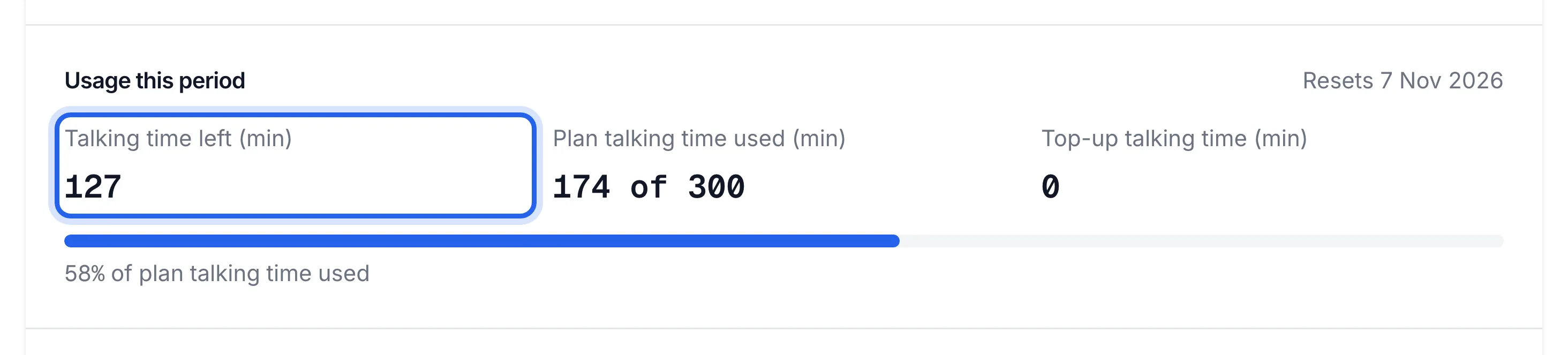
0:24 Usage this period shows the talking time you have left, what you've used from your plan, and any top-up minutes still on your account.
0:33 There are two packs: a hundred minutes for thirty-nine dollars, or three hundred minutes for ninety-nine dollars. Prices include GST, and you pay once, with no subscription.
0:43 Click Buy. With a card saved, it's one click: check the card and press Pay. To use another card, click Use a different card. With no card saved yet, a secure Stripe form opens instead.
0:55 The minutes are added straight away, and you get an email to confirm. If you'd run out, calls are answered again at once. If it says Payment received instead, the minutes are on their way, so don't pay again.
1:07 Minute history lists every change to your talking time, and a top-up shows as its own line. Calls use your plan's minutes first, then your top-ups.
1:16 Next, keep your card up to date and find your invoices.
Before you start
- You're the account owner and you're on a paid plan. During the free trial the buttons read Choose a plan first; see Choose a plan.
- A card. If you've paid before, it's already saved.
Five steps
Open Billing
Click Add minutes in the minutes panel under the sidebar menu, or click Billing under Account. The bar in that panel turns red when 15% or less of your talking time is left.
Check what you have left
On the Plan and usage tab, Usage this period shows:
- Talking time left (min): everything you can still use, plan and top-up together.
- Plan talking time used (min): how much of this month's plan you've used, and the date it Resets.
- Top-up talking time (min): top-up minutes still on your account.
Choose a pack
Under Top up talking time:
Pack Price (incl. GST) Per minute 100 minutes of talking time A$39 39c 300 minutes of talking time A$99 33c Click Buy 100 min or Buy 300 min. It's a one-off payment, not a subscription.
Pay
With a card saved, the panel shows the card ending in its last four digits and a Pay $39 (or Pay $99) button. Click it. To use another card, click Use a different card first.
With no card saved, a secure Stripe form opens. Enter your card; it's saved, so your next top-up is one click. If your bank asks you to approve the payment in its app, do that and come back.
Check the minutes are on
The panel says "Done" and "100 minutes added to your account." with the minutes you now have. Click Back to billing. You also get an email confirming the top-up.
Talking time left has gone up by the pack you bought, and the Minute history tab shows a Top-up line with the minutes added.
How minutes are used
Calls use your plan's minutes first, then your top-ups. Plan minutes start again each month on the date your plan renews; top-up minutes stay until they're used, as long as your plan is active. The time a caller spends with you after your agent transfers them isn't charged.
If something's not right
Calls stopped because I ran out
When your talking time is used up, callers hear a short message instead of your agent. Top up and calls are answered again straight away. See What happens when my minutes run out.
The button says "Choose a plan first"
Top-ups are for paid plans. Choose a plan; its minutes start straight away.
"The payment didn't go through"
Your bank declined it. Click Try again, choose Use a different card, or click Pay on Stripe instead.
It says "Payment received" but the minutes aren't there yet
Your payment is safe and the minutes are on their way. Click Check again after a few seconds. Don't pay again. If they haven't shown after a few minutes, email support@lightspire.ai.