Add an agent for another location
Each extra location, or each client you answer for, can have its own agent: its own Australian number, hours and voice agent, all in the same dashboard. Every plan covers one agent; each extra one is A$49 a month, GST included.
Watch it done

Read the transcript
0:00 Add an agent for another location
0:03 Each extra location can have its own agent: its own number, its own hours and its own receptionist, all in one dashboard.
0:11 Click the agent box at the top of the sidebar, then Add an agent. Only the account owner sees this. You can also start from Manage agents. The steps along the top show where you are.
0:22 Give it a label, like the suburb or the client's name; that's how it shows everywhere. Add the address if it's different, check the opening hours, and add anything callers should know about this location.
0:33 Click Continue. Now choose who answers: the receptionist's name, one of the Australian voices, and your own greeting if you want one. You can change any of this later on its Agent page.
0:44 Then click Continue to payment. Nothing is charged until you pay on the next step.
0:49 An extra agent is forty-nine dollars a month. Today you pay only the part of the month until your plan renews, on the card you've saved. Click Pay and continue.
0:59 Your new agent gets its own Australian number. Stay on this screen while it's set up; if it takes longer than usual, we email you when it's ready, or click Skip for now and carry on.
1:08 Then connect its calendar, so it only offers times that are free at that location, or click Done and do it later. Its hours, booking rules and transfers start as a copy of the agent you were on.
1:19 Switch between agents from the box at the top of the sidebar. Calls, settings and the number all follow the agent you choose.
1:27 Next, divert that location's phone to its new number.
Before you start
- You're the account owner. Team members can see agents but can't add or remove them.
- You're on a paid plan. On the free trial the button reads Choose a plan to add agents; see Choose a plan.
- A card is saved on Billing. See Update your card and get invoices.
- The new location's address and opening hours.
If your free trial started from a promo code, you can have up to 2 agents during the trial, free, with no payment step. When you choose a plan, the extra one stays on at A$49 a month, and you're shown that before you pay.
Six steps
Start adding an agent
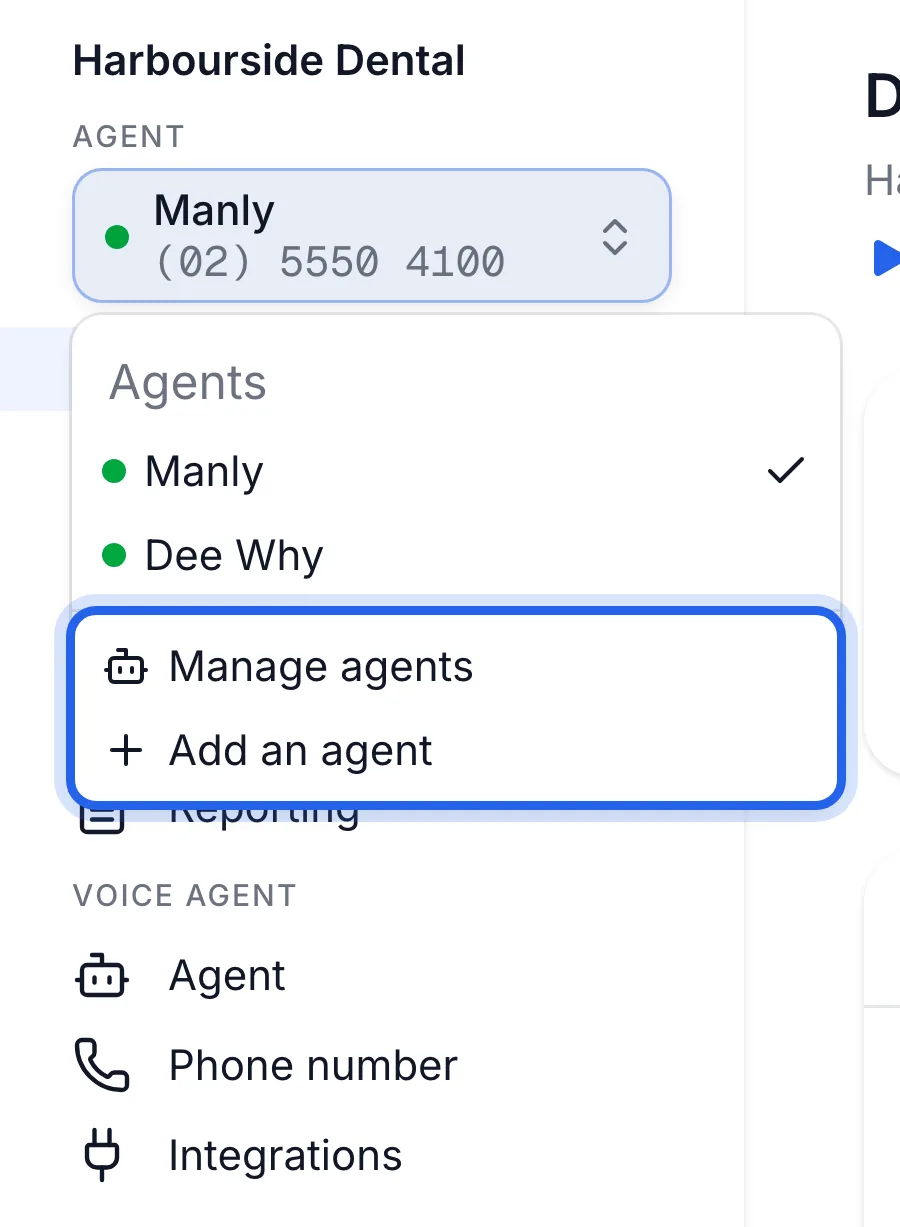
Click the agent box at the top of the sidebar, under Agent, then Add an agent. Or click Manage agents in the same menu, then Add an agent at the top right of the Agents page.
Name the location and set its hours
On Where it answers, fill in:
- Label: the location or client name, such as "Parramatta" or "Smith & Co", up to 40 characters. It's how this agent shows everywhere: the sidebar, calls, reports and emails.
- Address (optional): leave it empty to use your business's address.
- Opening hours: copied from the agent you're on now. Change them for this location. Bookings are only offered inside these hours.
- What callers should know about this location (optional): parking, the team there, anything that's different from your main business.
Click Continue.
Choose the voice agent
On The voice agent, set the Voice agent's name callers hear (it starts as Mia), pick a Voice, and add a Greeting (optional). Leave the greeting empty to use "Thanks for calling …, this is …. How can I help you today?"
Click Continue to payment. Nothing is charged until the next step.
Pay for the extra agent
The summary shows Extra agent at $49 a month. Today you pay only the part of this month until your plan renews; after that it's billed with your plan each month. It's charged to the card shown under Card.
Click Pay and continue. If there's no card on file, click Add a card in Billing, save one, then come back to Agents and click Finish adding.
Get its number
Your new agent gets its own Australian local number. Stay on the screen while it's set up. If it's taking longer than usual, you can click Skip for now; we'll email you when the number is ready, and Get a number on the Agents page picks it up again.
Connect its calendar
When you see "{Label} is ready", click Connect a calendar to link this location's calendar, so it only offers times that are free there. Or click Done and do it later from Integrations. See Connect Google Calendar.
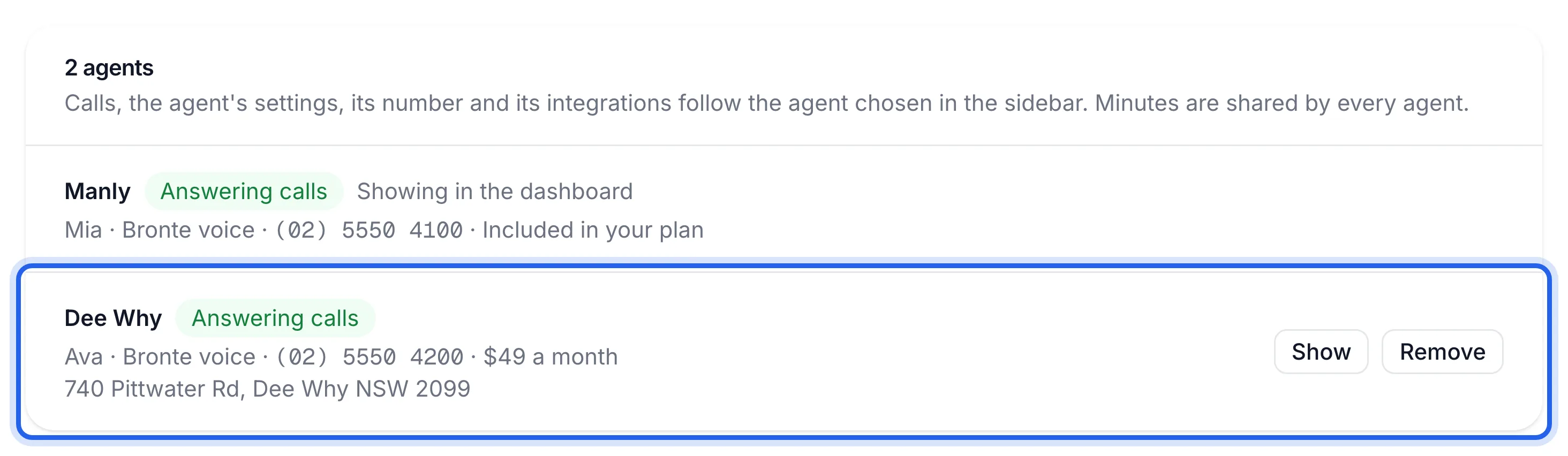
The Agents page shows your new agent with Answering calls, its number and "$49 a month", and you can pick it from the agent box at the top of the sidebar.
Switch between agents
Calls, Agent, Phone number and Integrations show the agent chosen in the agent box at the top of the sidebar. Pick another agent there to work on it. Everything you change on the Agent page applies to that agent only.
Talking time is shared: every agent draws from the same plan minutes and top-ups.
Remove an agent
On the Agents page, click Remove next to the agent, then Remove agent. It stops answering straight away and its number is given back, which can't be undone. The $49 a month stops, with unused time credited on your next invoice. Its calls and bookings stay in your dashboard under its label. The agent your plan includes can't be removed.
If something's not right
I don't see "Add an agent"
Only the account owner can add agents, and only on a paid plan. If you see Choose a plan to add agents, choose a plan on Billing first.
The agent says "Waiting for payment"
The payment didn't go through or you left before paying. On the Agents page, click Finish adding and pay with a card that works.
The new location's calls aren't showing
Check the agent box at the top of the sidebar: Calls only shows the agent that's chosen. Also check the location's phone is diverted to the new agent's number, not the first one: Divert your calls.
It's using the first location's settings
Opening hours, booking rules, transfers and notifications start as a copy of the agent you were on when you added it. Choose the new agent in the sidebar, then change them on its Agent page.