Choose who gets booking and message emails
Every time your agent takes a booking or a message, you get an email with the details and a link to the call. Choose which inbox gets them, and which kinds you want.
Before you start
- The email address that should get them, such as your front desk's.
- If you have more than one location, each agent has its own settings: pick the agent in the sidebar first.
Five steps
Open the Your alerts tab
In your dashboard, open Agent, then choose Notifications on the left. Your alerts is its first tab.
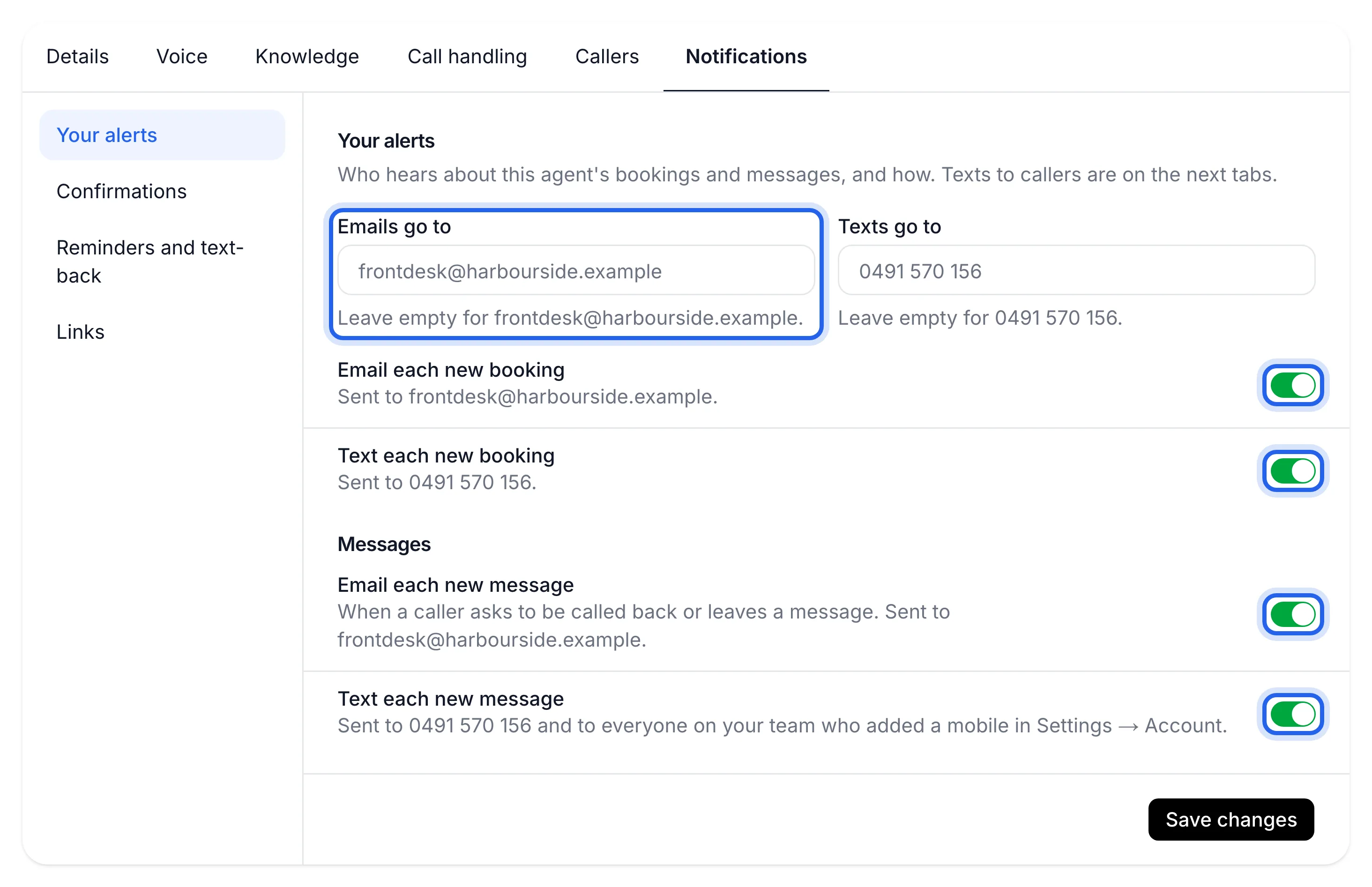
Choose where emails go
Type an address in Emails go to. Leave it empty to use your Business email (set in Settings › Business), or your sign-in email if there isn't one. The hint under the box shows which address that is.
Switch on the emails you want
- Email each new booking: a booking made over the phone. The same switch covers bookings that callers cancel or move.
- Email each new message: when a caller asks to be called back or leaves a message.
Email Subject line New booking New booking: Sam Taylor, Tuesday 13 October at 10am Cancelled booking Booking cancelled: Sam Taylor, Tuesday 13 October at 10am Moved booking Booking moved: Sam Taylor, was Tuesday 13 October at 10am (plus a "New booking" email for the new time) Message New message: Sam Taylor, 0491 570 156 Each email has the caller's details, their answers to your intake questions, and a button to open the booking or the call.
Add texts to your mobile, if you want them too
Texts go to takes an Australian mobile; empty uses Your mobile from Settings. Then switch on Text each new booking or Text each new message. Message texts also go to everyone on your team who added a mobile in Settings › Account.
If the tab says "Texts aren't switched on for Lightspire yet, so for now only emails are sent", you can set texts up now and they start once texts are on.
Save your settings
Press Save changes. You'll see "Notification settings saved".
Your next test booking arrives as a "New booking" email in the inbox you chose.
Turn it off
Switch off Email each new booking or Email each new message and press Save changes. Every notification email also has a link at the bottom straight to this tab. Emails about your account and billing still come, as they're not notifications.
If something's not right
I'm not getting any emails
Look in your spam or junk folder and mark the email as safe. Check the switches are on and Emails go to is right, on the right agent. Then make a test booking: see Make a test call.
Emails go to the wrong address
An empty Emails go to uses your Business email from Settings › Business. Type the address you want here instead, or change the business email.
I see "Enter an Australian mobile for texts"
Texts go to only takes an Australian mobile, such as 0491 570 156. Texts can't go to a landline.