Put callers through to you or your team
Some callers need a real person. Your agent can put them through to your phone, or to the right person in your team, and takes a message when nobody picks up.
Watch it done

Read the transcript
0:00 Put callers through to you or your team
0:03 Sometimes a caller needs a real person. Your agent can put them through to you or your team, and take a message when nobody's free.
0:12 Open Agent, then the Transfers tab. Switch on Put callers through to a person.
0:19 Type the number to ring in Number to transfer to. A mobile or a landline. This is your main line, for anyone who just wants someone.
0:27 Under When to transfer, choose During opening hours or Any time. Outside those times, your agent takes a message instead.
0:35 Got different people for different things? Add a department. Give it a name, its number, and a few words about what it handles.
0:43 Your agent works out who the caller needs, and says "Putting you through to Accounts now." A department can keep its own hours.
0:50 Press Save changes. Here's what happens on a call. Your phone rings for twenty seconds. If nobody answers, the caller is put back to your agent to leave a message.
1:01 A caller who asks to be called back gets a message taken, not a transfer. And your minutes stop once a call is put through.
1:09 Ring your number and ask for a person to test it.
1:13 Next, choose who gets your booking emails.
Before you start
- The number to put callers through to: a mobile or a landline.
- For departments: each one's name, number and what it handles.
- A second phone to test with.
Six steps
Open the Transfers tab
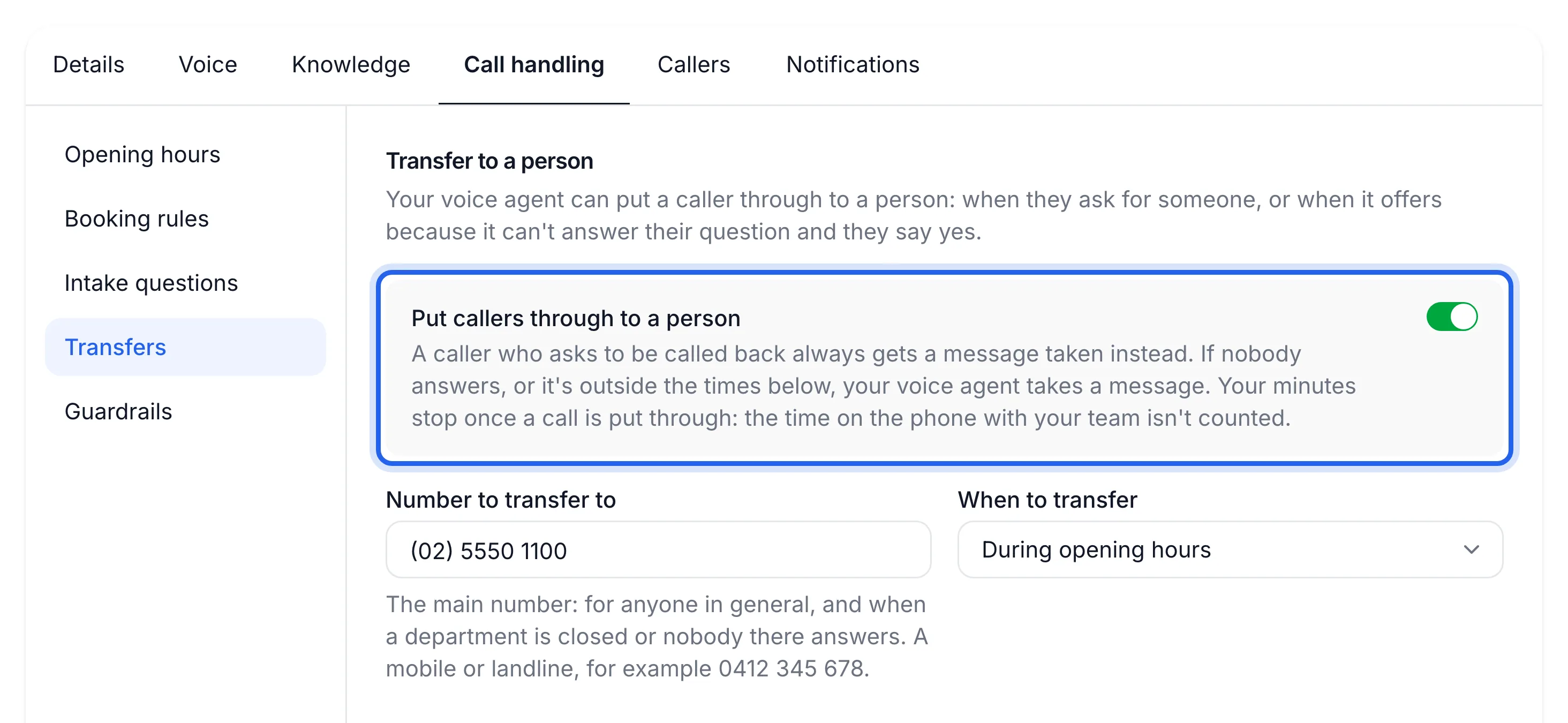
In your dashboard, open Agent, then the Transfers tab. It's headed "Transfer to a person". With more than one location, each agent has its own transfer settings: pick the agent in the sidebar first.
Switch on transfers and add your number
Switch on Put callers through to a person. In Number to transfer to, type the number to ring, for example
0491 570 156. This is your main number: for callers who just want "someone", and for when a department is closed or nobody there answers.Don't use a phone that diverts all its calls to your Lightspire number. The transfer would come straight back to your agent.
Choose when to put callers through
Under When to transfer, choose During opening hours or Any time. Outside those times your agent says nobody can come to the phone and takes a message instead.
Add departments, if you have them
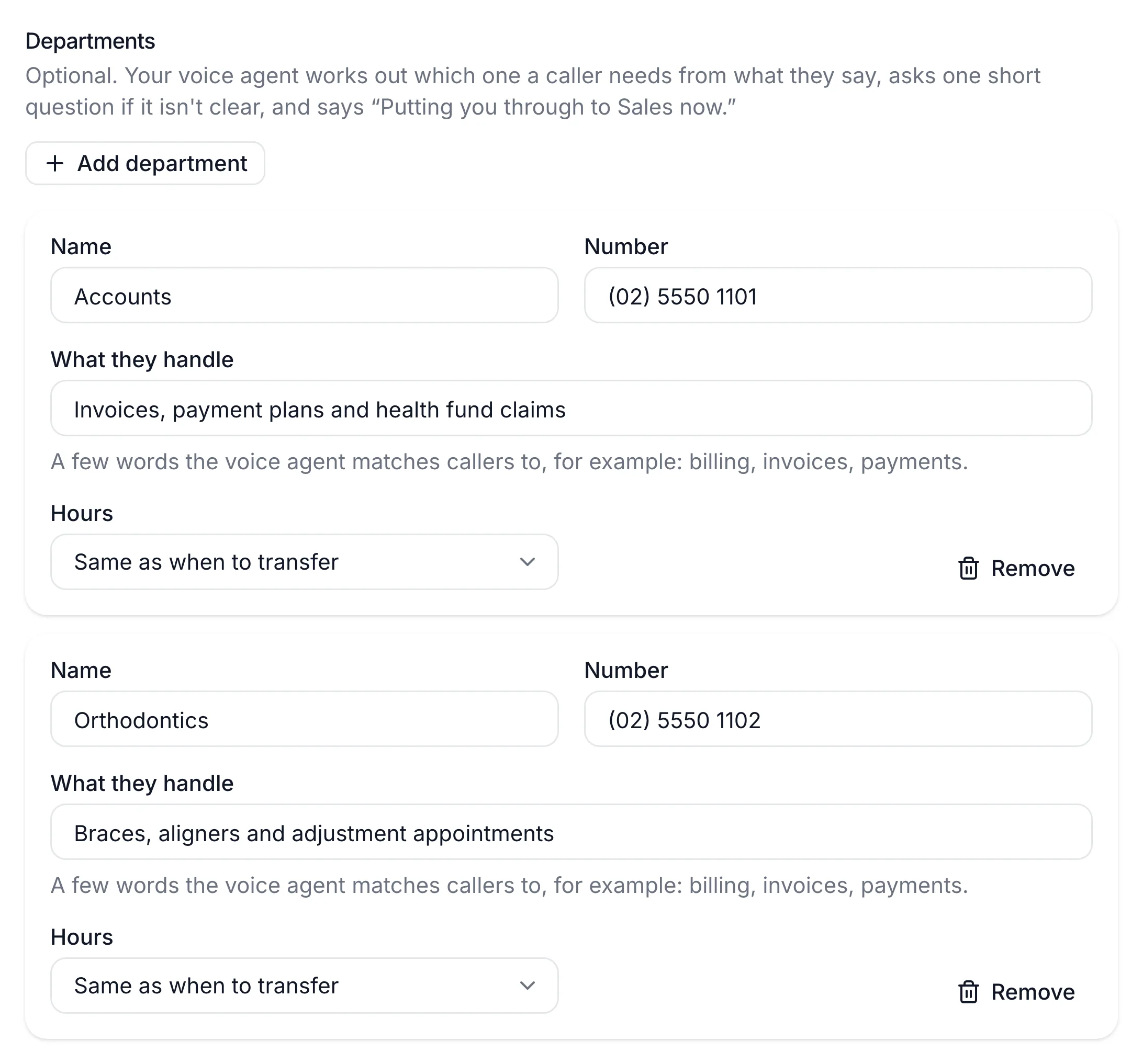
Press Add department and fill in:
- Name: what callers ask for, such as Accounts.
- Number: where to ring them.
- What they handle: a few words your agent matches callers to, such as "Invoices, payment plans and health fund claims".
- Hours: Same as when to transfer, or Their own hours.
Your agent works out which department a caller needs from what they say, asks one short question if it isn't clear, and says "Putting you through to Accounts now." You can add up to six.
Save your settings
Press Save changes. You'll see "Transfer settings saved". It works from the next call.
Test it
From another phone, ring your Lightspire number and say "Can I speak to someone, please?". Your agent says "Putting you through now." and your phone rings.
What happens on a call
| The caller... | Your agent... |
|---|---|
| asks to speak to someone, or a department | puts them through |
| can't get an answer from your agent and says yes to being put through | puts them through |
| asks to be called back | takes a message (no transfer) |
| rings outside the times you chose | takes a message |
| is put through, but nobody answers within 20 seconds | the caller is told and put back to your agent to leave a message |
Your minutes stop once a call is put through. The time on the phone with your team isn't counted.
Your test call rings your phone, and the call shows on your Calls page marked Transferred.
Turn it off
Switch off Put callers through to a person and press Save changes. Callers who ask for someone get a message taken instead. Your number and departments are kept for next time.
If something's not right
It took a message instead of putting the caller through
Check the time: with During opening hours, transfers follow the hours on the Opening hours tab. A caller who asked to be called back always gets a message. And if nobody answered a transfer to that number in the last 15 minutes, the same caller isn't put through to it again; your agent takes a message.
I see "Add the number to transfer to first"
Transfers are on but Number to transfer to is empty. Add a number, or switch transfers off.
I see "...'s number is a Lightspire line"
A department's number is one of your Lightspire numbers, so callers would come straight back to a voice agent. Use the person's own mobile or landline.
The caller says the line went quiet
After "Putting you through now." the caller hears an Australian ringing tone while your phone rings. If they heard silence, send support the time of the call and the caller's number. See Find a call and play the recording to check what happened.